Process Mining - Checking Process Conformance
Last updated 2 months ago
This feature lets you define what the process should look like, and then see where reality deviates from it.
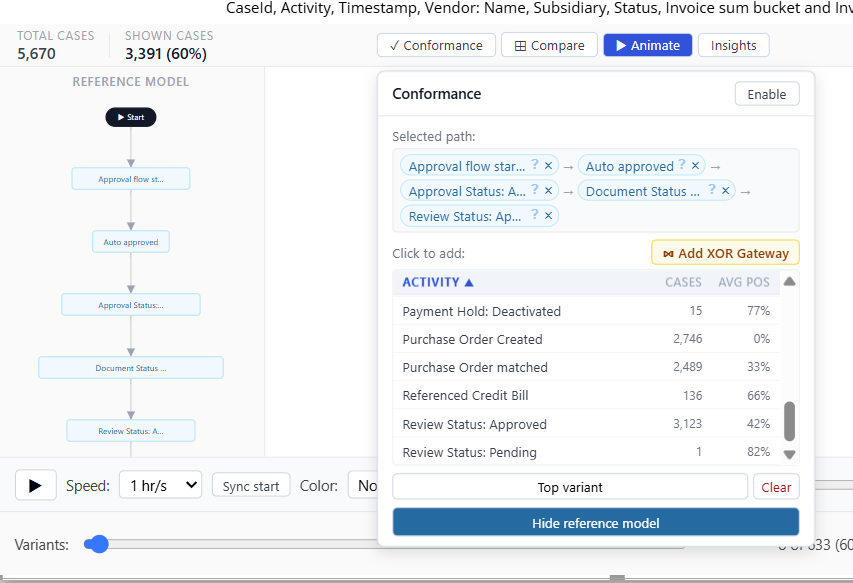
Click ✓ Conformance to open the panel and toggle Enable.
Build your reference path by clicking activities from the sortable list under "Click to add", or dragging them into the path area. Reorder by dragging chips left/right.
Optional building blocks:
Click the "?" on a step to mark it optional (shown in italics), meaning cases can skip it without being flagged as non-conformant.
Use ⋈ Add XOR Gateway to allow a branch point where a case can take one of several alternative steps and still conform.
Use Top variant to auto-fill the path from your single most common route, or Clear to start over.
Click Show reference model to view your defined path as its own small diagram alongside the main one.
Once enabled, the main flowchart recolors: green arrows are on your reference path, red arrows are deviations. The Insights panel (below) also switches to show conformant vs. non-conformant case counts and the most common deviations.
Was this helpful?
Still need help? Ask the team