Bring your own capacity
Last updated 20 days ago
Prerequisities:
The user who activates have to have during the activation process:
Admin access to the BI Book environment
Azure application administrator role (at least) → so that you can approve enterprise applications in your tenant
Fabric administrator role (for setting up permissions in power bi)
Power BI / Fabric Capacity
Optional (best practice) - Security group administrator → so that you can manage azure ad security groups and their members
Adding “BI Book - Power BI” Azure Enterprise Application
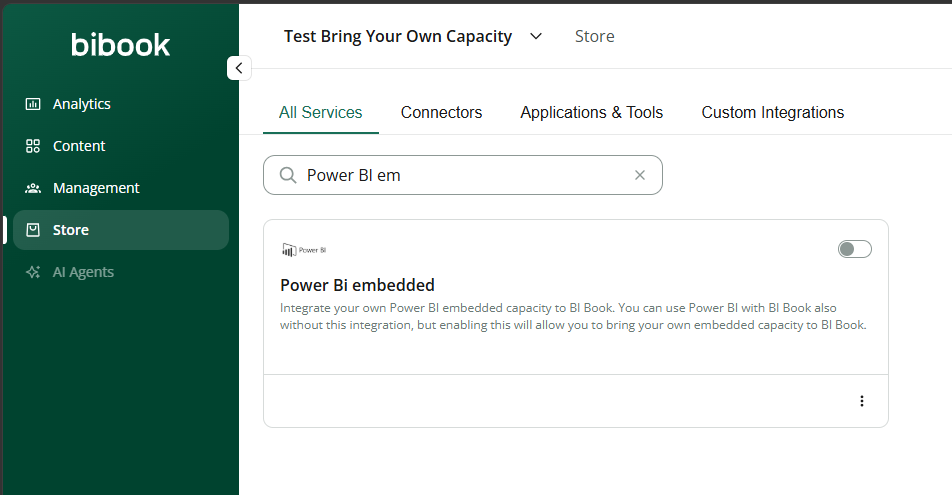
Login to BI Book and activate “Power BI Embedded” by inserting the tenant ID where your power bi service lives and following the OAuth flow that approves the enterprise application in your tenant
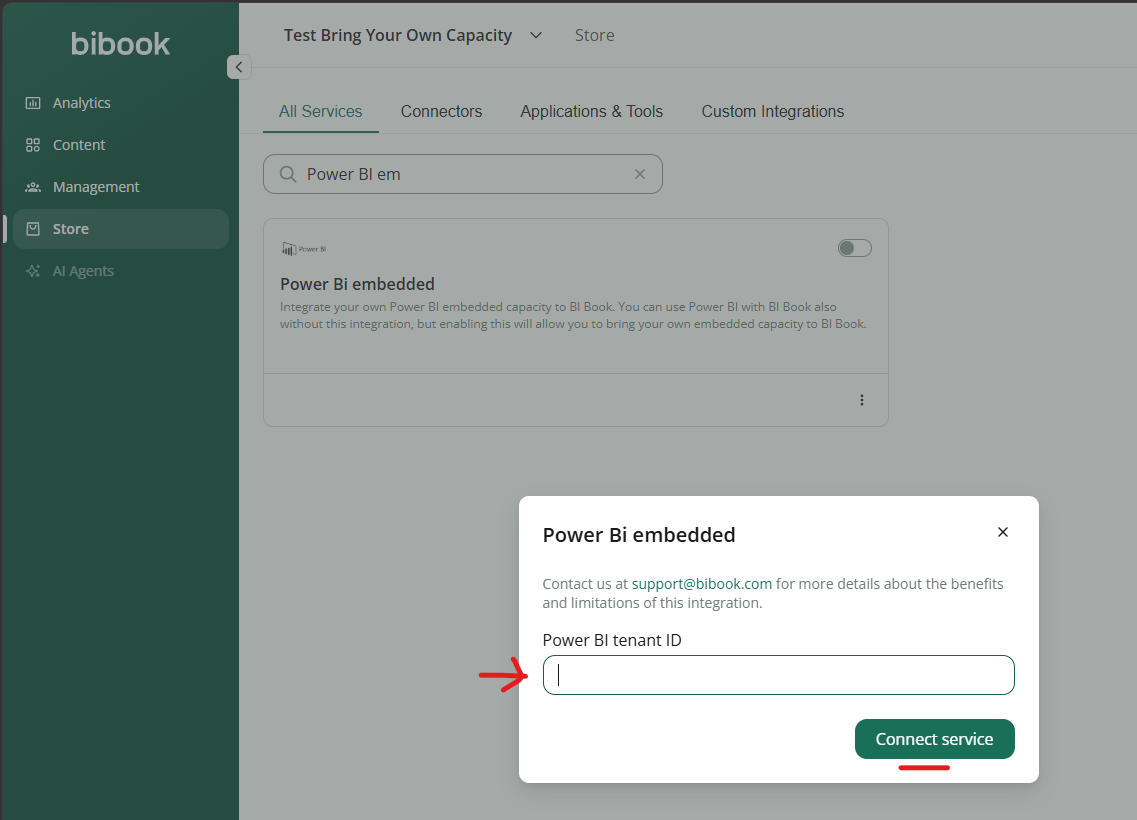
Make sure you grant the required access rights to the application with a account that has at least application administrator role:
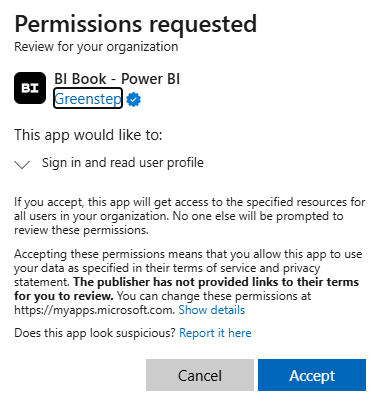
After you have accepted you will be redirected back to BI Book with the Power BI embedded connector enabled.
→ This process has now created a enterprise application in your tenant called “BI Book - Power BI”. In the next steps we configure the required permissions needed by Power BI/Fabric.
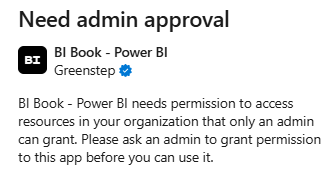
NOTE! If the following appears your Microsoft account doesn’t have the required access rights and you will have to ask an admin to grant the consent. On BI Book side the Power BI Embedded capacity connector looks like its enabled but you won’t be able to add reports from your Power BI service tenant until you have done all the steps in these instructions, i.e. making sure the app has been granted access in your tenant and Power BI/Fabric access rights have been configured (see next steps)
Configuring Power BI / Fabric Permissions
Login to Power BI admin portal https://app.powerbi.com/admin-portal/tenantSettings?experience=power-bi with a account that has admin portal permissions
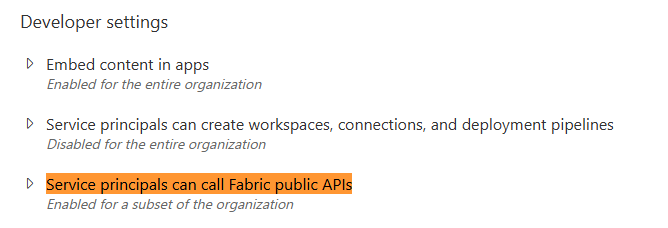
Make sure the enterprise application “BI Book - Power BI” has access to the following settings in Power BI admin portal (here best practice is to give access through azure security groups):
Developer Settings: “Service Principals can call Fabric public APIs”
Integration settings: “Allow XMLA endpoints and Analyze in Excel with on-premise semantic models”

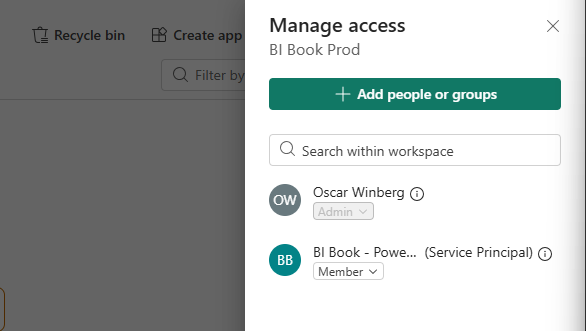
For each workspace you want BI Book to have access to, make sure our enterprise application “BI Book - Power BI” has been added with at least Member role
Adding Reports to BI Book
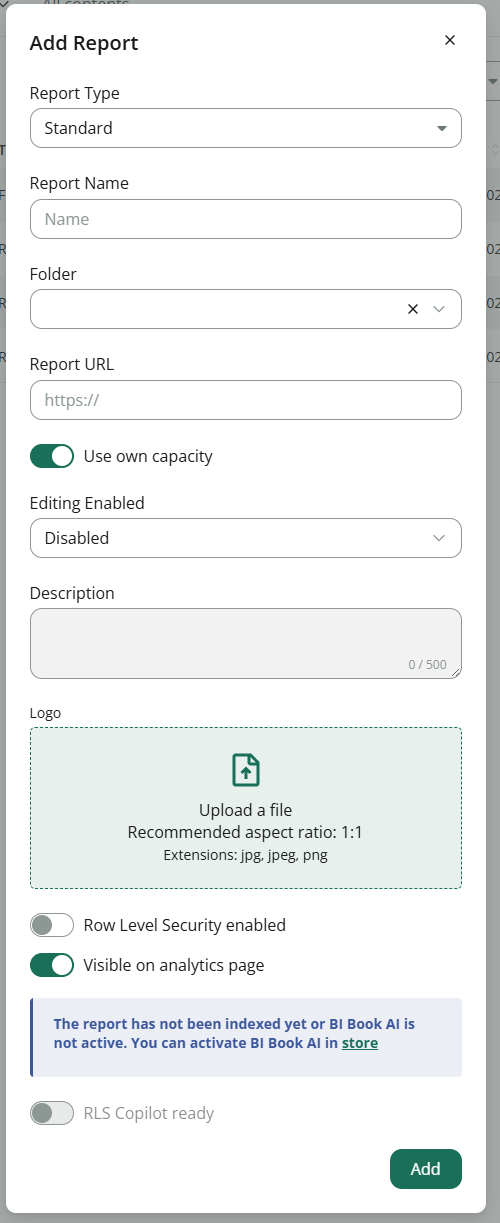
Now you are able to add reports from your own Power BI service to BI Book. Simply copy the report url from your own workspace and add it to BI Book with “Use own capacity” turned on:
See more information here regarding adding reports and how RLS works in BI Book:
Adding a new Power BI report - BI Book
Adding Row level Security to data models - BI Book
Limitations
BI Book AI doesn’t yet work with your own capacity. It will be available during October 2026!
Was this helpful?
Still need help? Ask the team