Refreshing the database
Last updated 4 months ago
Sometimes, updating your report requires fetching the latest data from your integrations in addition to a regular report refresh. To ensure your report reflects the most current information, you can perform a manual data refresh.
How to fetch the latest data from database
Step 1. Log in to BI Book as a user with Admin rights.
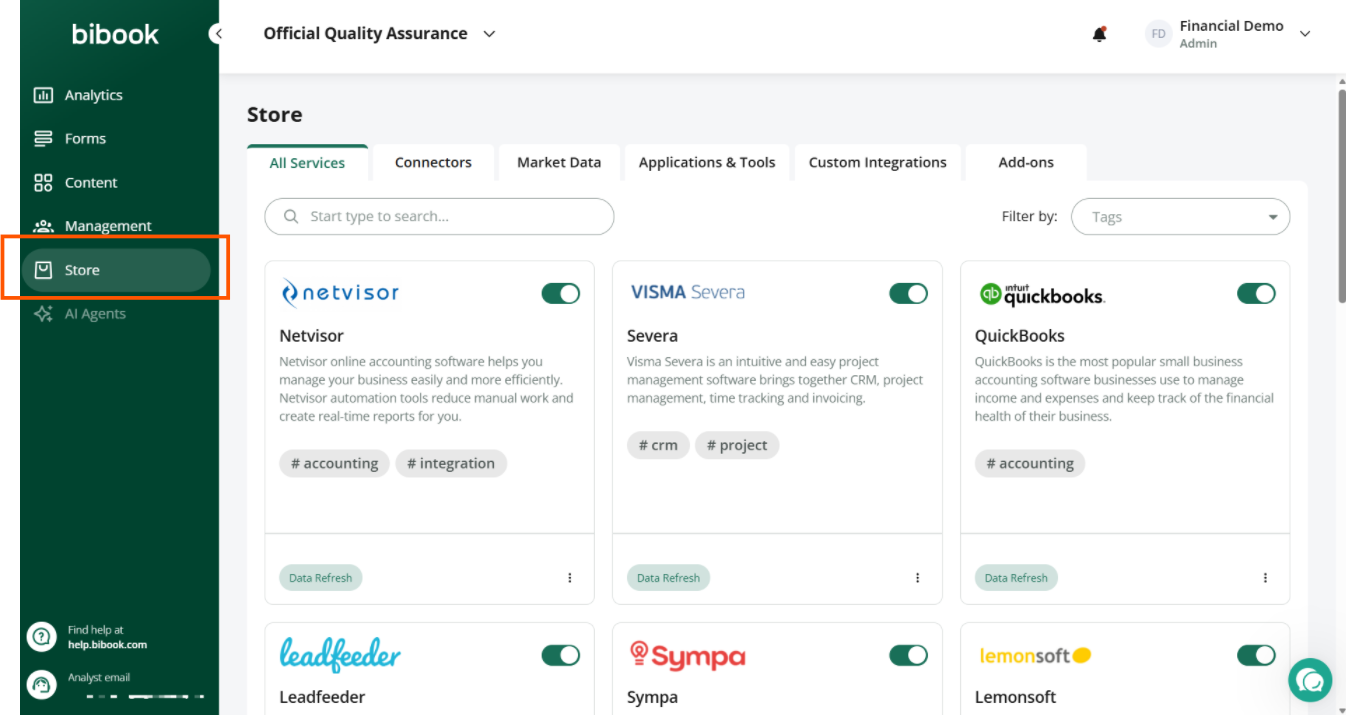
Step 2. Navigate to the Store tab in the left sidebar and search for the integration from which you want to fetch data:
Step 3. Under the integration click the three dots or press “Data refresh” button
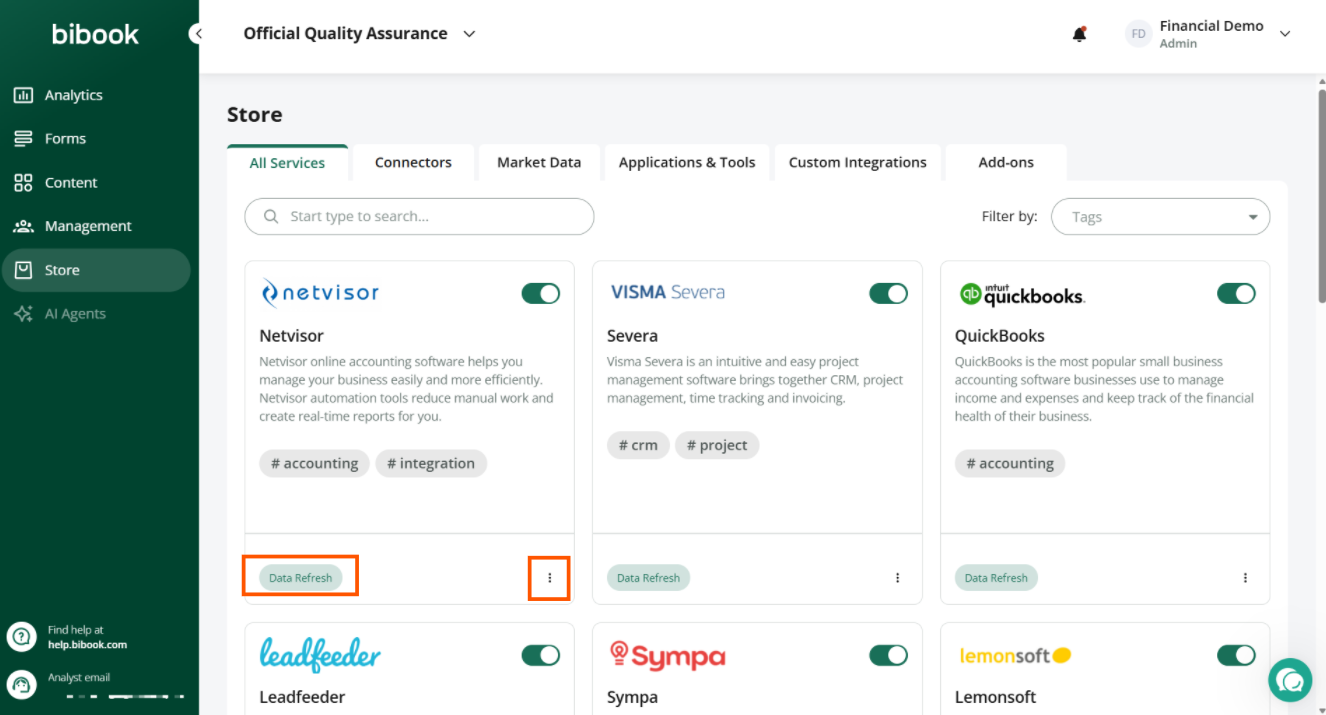
💡If you do not see the Data refresh button for an activated integration, manual refresh is likely not available for that integration (scheduled refreshes, typically once per day, still run as normal).
If you need manual refresh enabled, please contact your responsible analyst or email us at support@bibook.com.
Step 4. A pop-up window will appear, offering you options to select from:
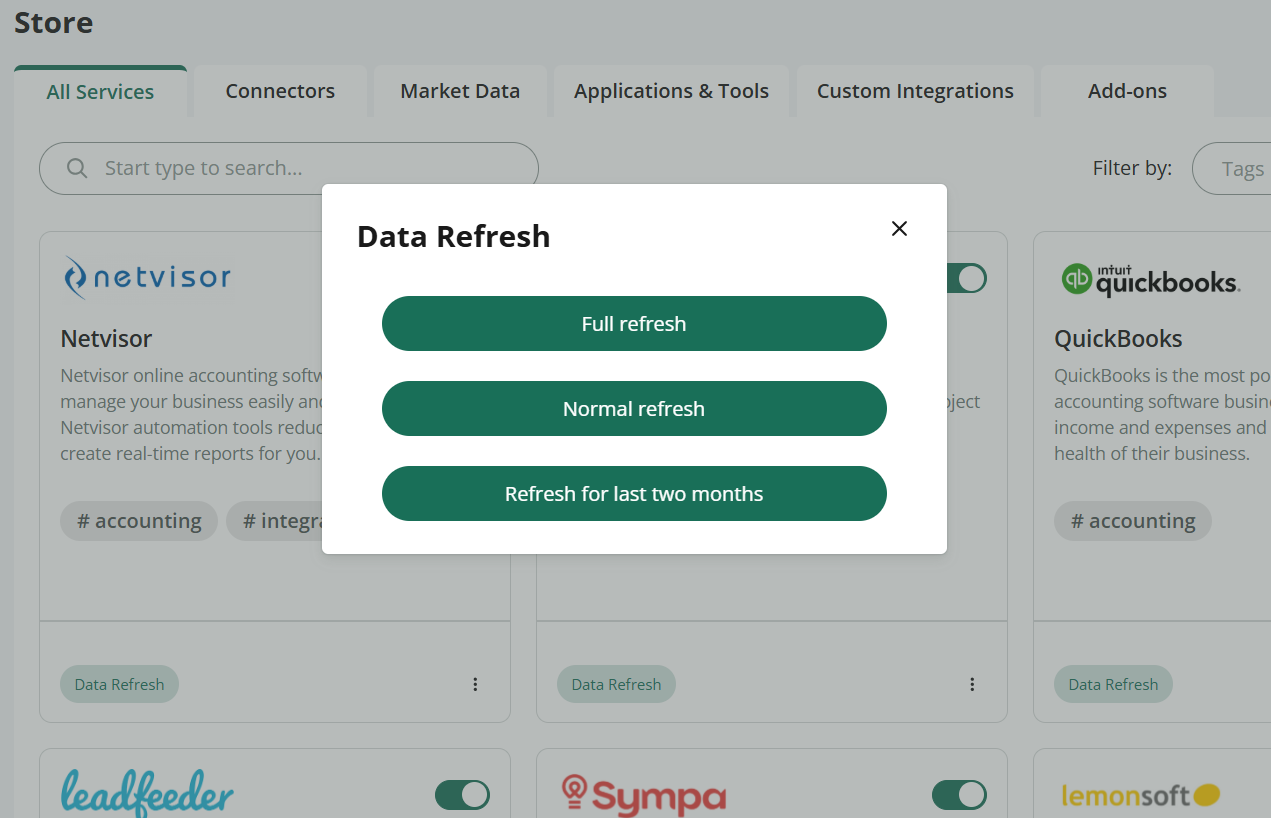
Data refresh options
Full refresh: This option will update all data across the entire historical timeline. Use this if you have made changes to data spanning multiple years in the past
Normal refresh: This option will refresh data from today back to the beginning of last year, ensuring recent data up to the current day is updated.
Refresh for last two months: This option updates only the data from the past two months, providing the most recent information within that period.
Step 5. Choose the desired refresh option and click on it.
Once the refresh process has started, you will see status updates under the connector.

Data Refreshing (yellow/orange): Indicates that the refresh is still in progress.
Data refresh finished (green): Means the refresh has been completed.

Remember: Refresh your browser to see if the status has changed from "in progress" to "completed".
Was this helpful?
Still need help? Ask the team