Process Mining - Compare Mode
Last updated About 2 months ago
Comparing groups side-by-side (Compare mode)
If you've added a Case Attribute field (e.g. Region, Vendor, Department), click ⊞ Compare to split the diagram into one mini flowchart per attribute value, laid out side-by-side for easy comparison. If you added more than one attribute field, clicking Compare lets you choose which one to split by.
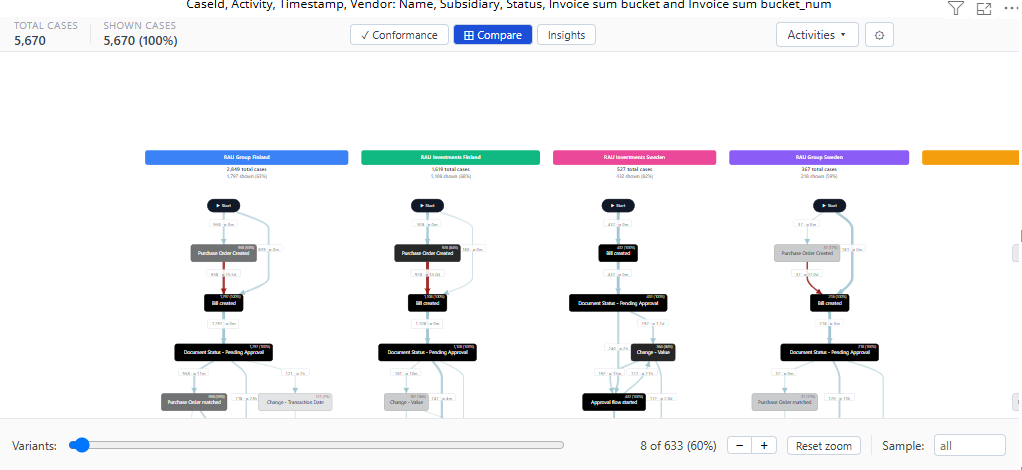
Each column is labeled with the attribute value, its total case count, and what share of all cases it represents.
Columns are ordered by case volume, busiest first.
Cases with a missing value for that attribute are grouped into a "(Blank)" column.
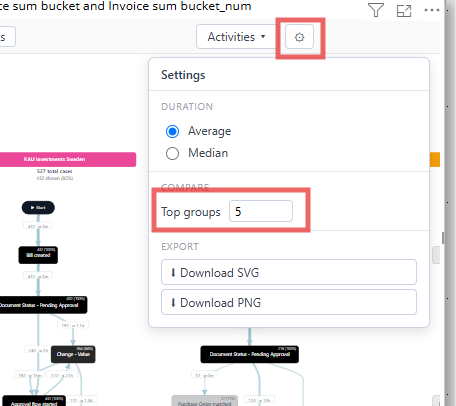
By default up to 5 columns are shown; change this in ⚙ Settings → Top groups if you want to see more or fewer groups at once.
Was this helpful?
Still need help? Ask the team