BI Book display modes
This article explains how to switch between Light and Dark display modes in BI Book.
Last updated 3 months ago
Choose how BI Book looks
BI Book adapts to the way you like to work. Pick the display mode that suits you:
Light — bright and clear. This is the default.
Dark — easier on the eyes in low-light environments.
System — BI Book automatically follows your device's display setting, so it always matches the rest of your screen.
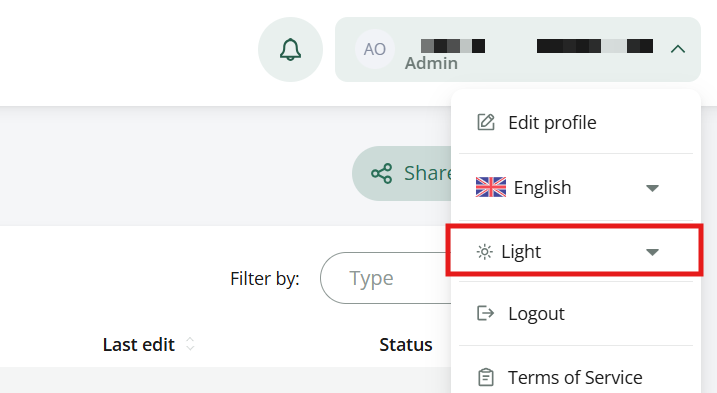
You can change this at any time in your settings. To change your display mode, click your profile icon in the upper right corner and pick the mode you prefer from the dropdown:
Setting a default mode for your organisation (Admin only)
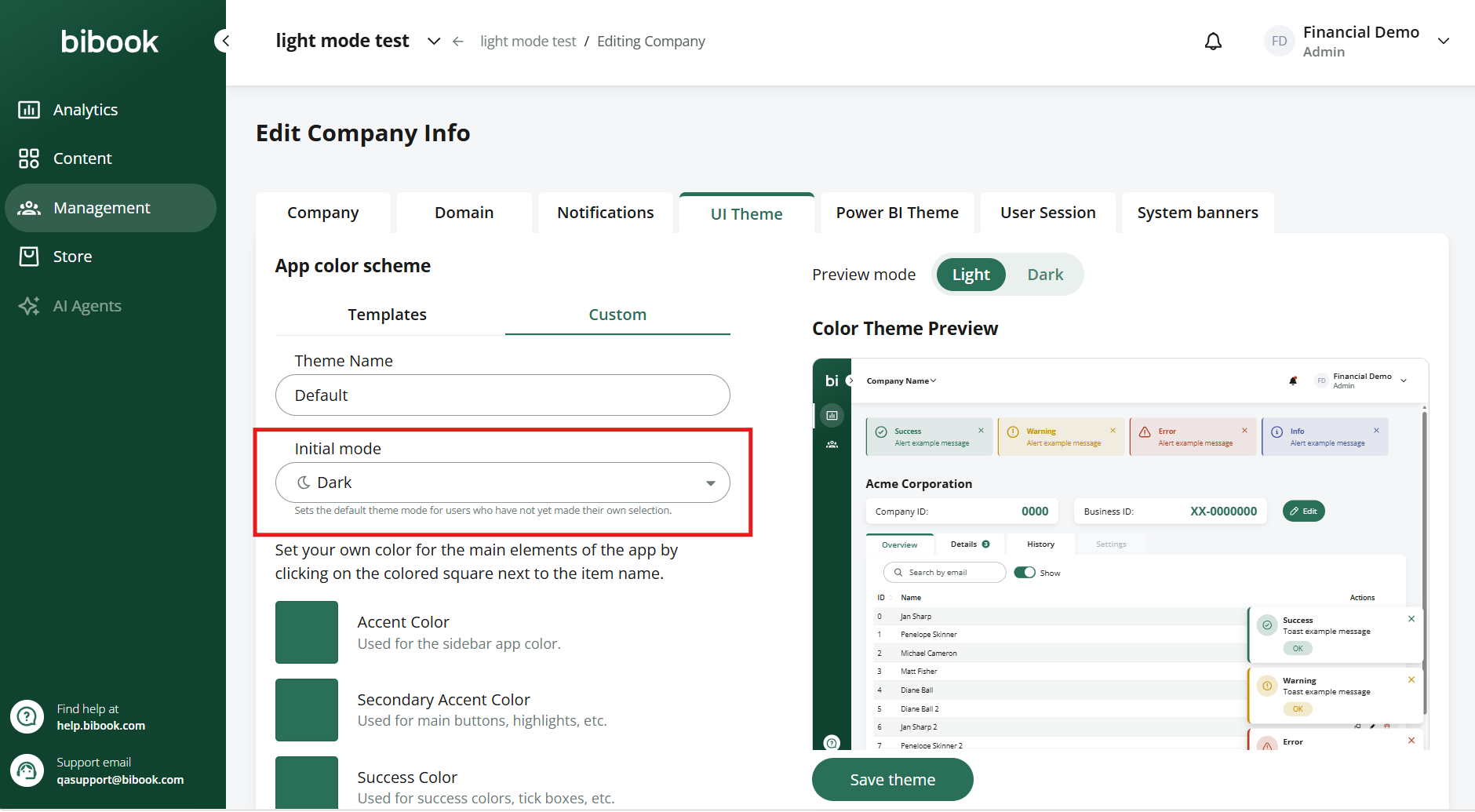
As an Admin, you can set the default display mode for all users who haven't made their own selection.
Go to the Management page and enter edit mode.
Open the UI theme tab.
Under App color scheme, configure your custom theme and choose the Initial mode.
Remember to save your custom theme.
Users who have already picked their own mode keep their selection — your default only applies to those who haven't.
Learn more
Was this helpful?
Still need help? Ask the team