Changing BIBook theme
Make BI Book match your brand. This article shows you how to set up custom UI themes, from colors to display modes.
Last updated 3 months ago
With custom UI themes, you can apply your brand colors across your entire BI Book environment — or pick a ready-made color scheme in a couple of clicks.
Where to find theme settings
Go to Company Management and press Edit company.
Open the UI Theme tab.
From here you have two options: apply an existing theme or create your own.
Applying an existing theme
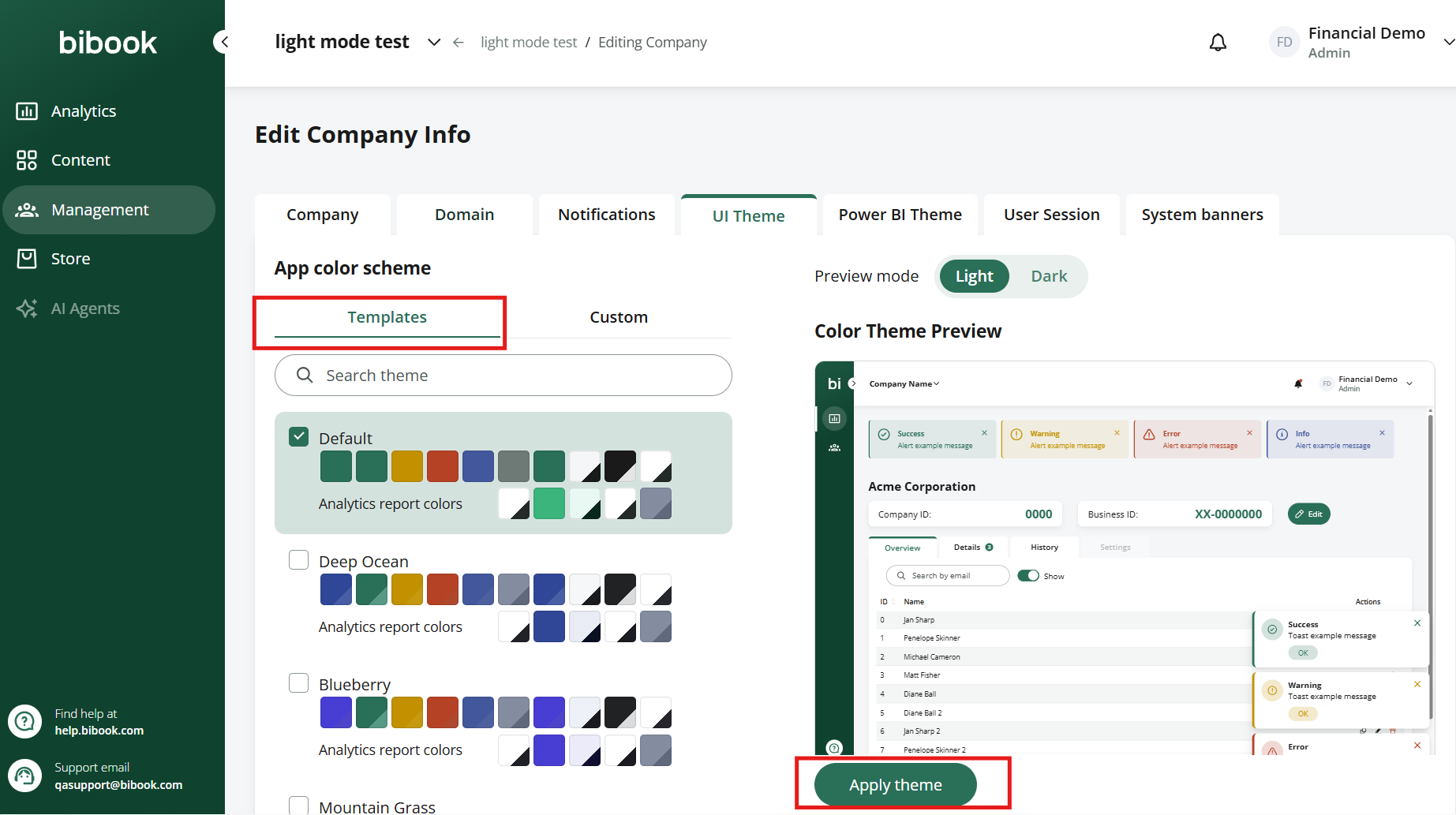
On the Templates tab you'll find all created color schemes. Browse them and apply the one you want — it takes effect across your BI Book environment.
Creating a custom theme
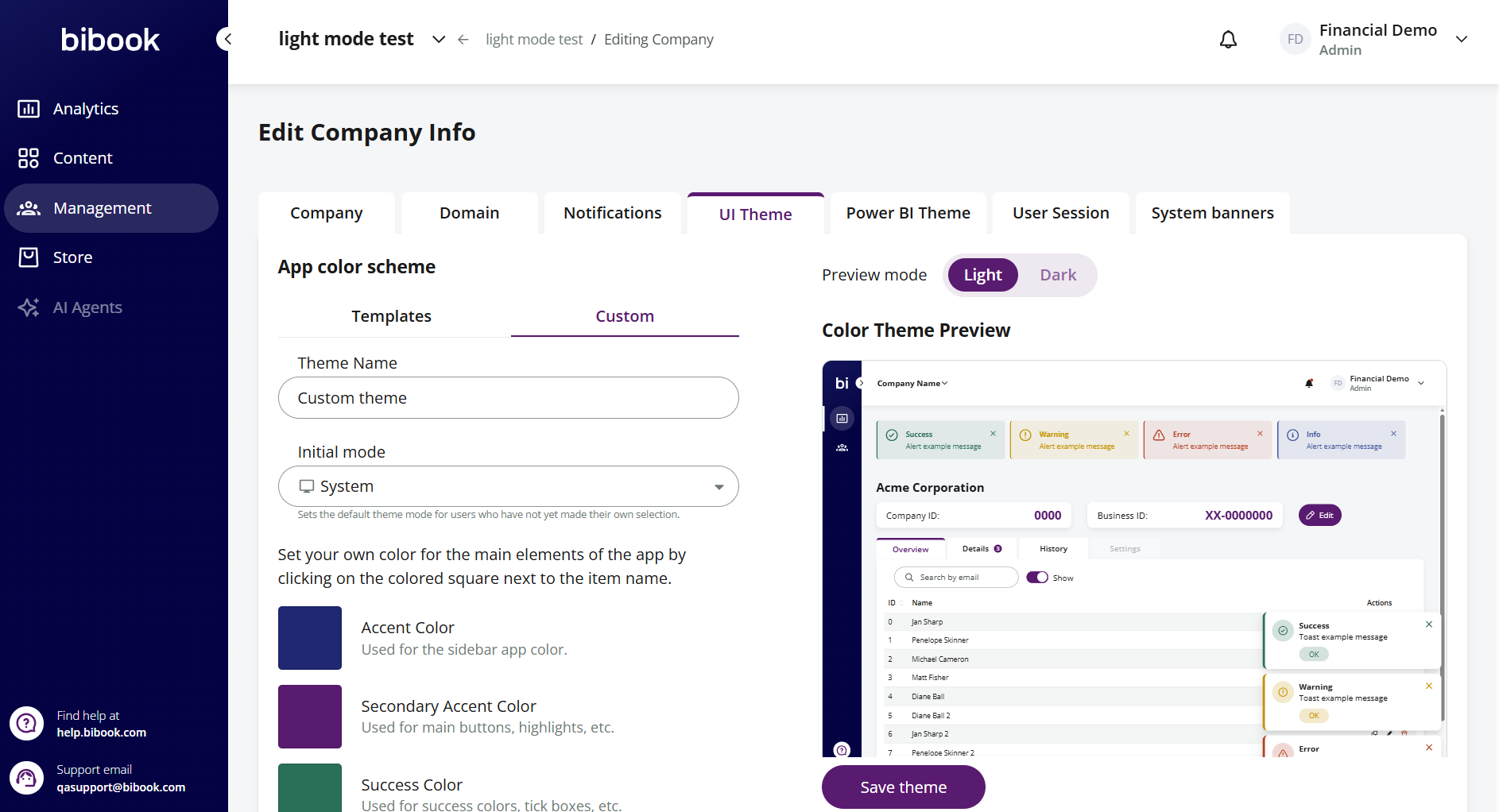
Open the Custom tab and start a new theme.
Name your theme.
Click the color icon of each section to change its color. You can scroll to find the right shade or enter an exact value, such as a hex code.
Check how your selections look in the Color Theme Preview.
Press Save Theme when you're happy with the result. Your new theme is now live on your BI Book page.
Good to know:
You can define your custom theme for both light and dark modes, so it looks right whichever mode your users prefer. The preview mode controls which one you're editing: set it to Light to design the light version, switch to Dark to adjust the dark version.
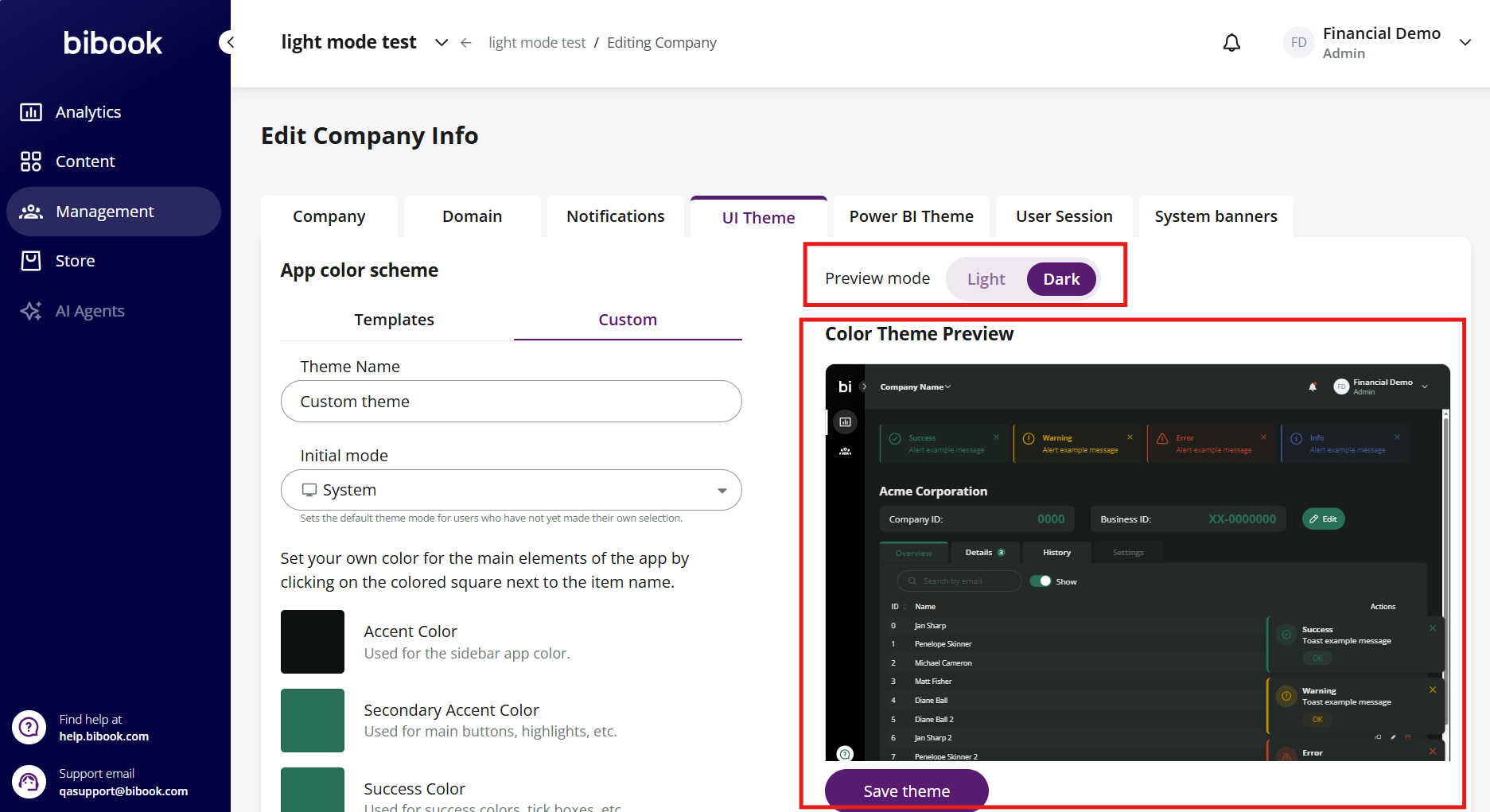
💡Keep the Background main color light in Light mode and dark in Dark mode. Setting a very dark background for the light theme (or a very light one for the dark theme) can make display modes behave unexpectedly.
Need to adjust something later? Return to the Custom tab and edit your colors as many times as you like.
Ran into trouble or need a hand? Contact us at support@bibook.com — we're happy to help.
Was this helpful?
Still need help? Ask the team