BI Book Report Bookmarks
Last updated 3 months ago
In your daily workflow, you frequently access specific BI Book reports. Each time you open a report, you often need to configure various dimensions to display the information relevant to your work.
The Challenge: Repetitively adjusting report dimensions can be tedious and time-consuming.
The Solution: You can save your preferred view by using Bookmarks. This will allow you to instantly access the report with your customized view.
Bookmark types and user rights explained
You can create private or/and public bookmarks.
Public bookmark: you found an insight in data and want to share it with your colleagues. Public bookmark will help you to save the exact report page, where you found the insight, together with slicers' selections and page filters.
Private bookmark: you want to have a quick access to the report view that is relevant especially for you in your daily tasks. For example, you want to see current months numbers for the cost center you are in charge of.
Who can view bookmarks
Private bookmark: only you. Even Admins cannot see the private bookmarks you've created.
Public bookmark: everyone with the access to the source BI Book report can see the bookmark.
Who can create/delete bookmarks
Private bookmark. Anyone with an access to the report can create/delete a private bookmark
Public bookmark. Users can create a public bookmark for a report if they have “Power BI edit mode” on that report via either:
“Can edit” direct access, or
A user group with “Can edit” access.
Users with “Power BI edit mode” on a report can delete that report’s public bookmarks.
💡Even if the report itself does not have editing enabled in BI Book, users with “Power BI edit mode” permission can still create public bookmarks for that report.
Note: Admins have permission to create and delete public bookmarks on any report by default.
How to view report’s bookmarks
Open the report whose bookmarks you want to access.
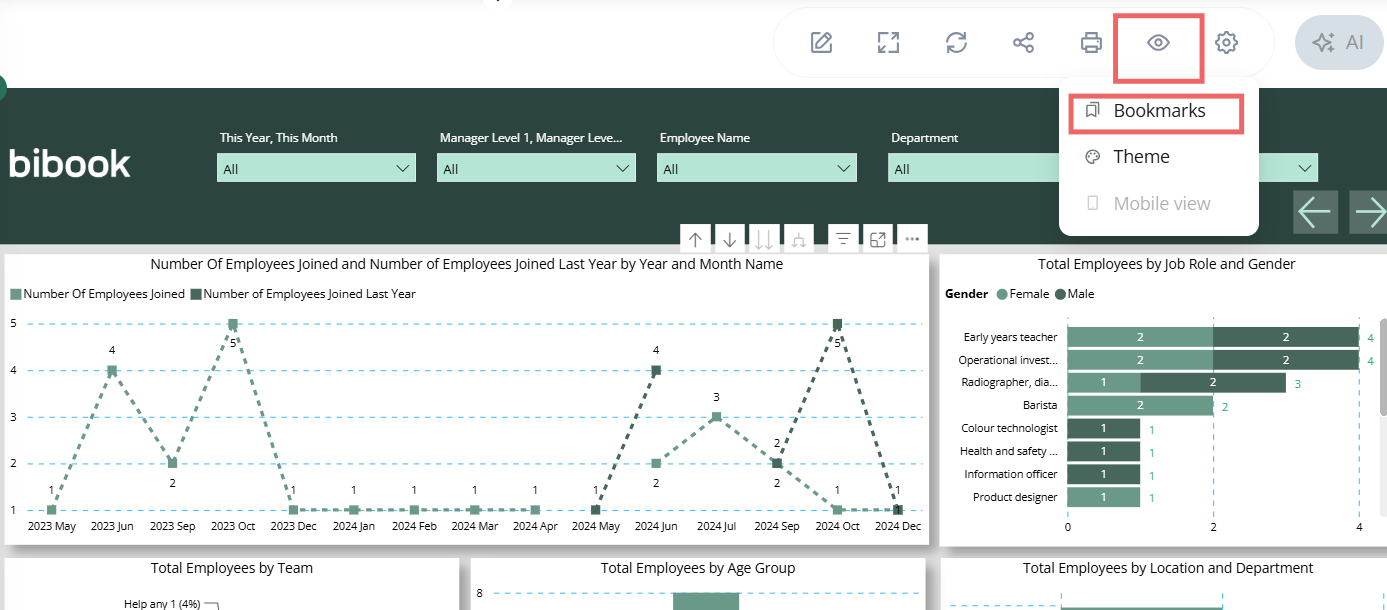
On the action panel, click the View icon and select Bookmarks.
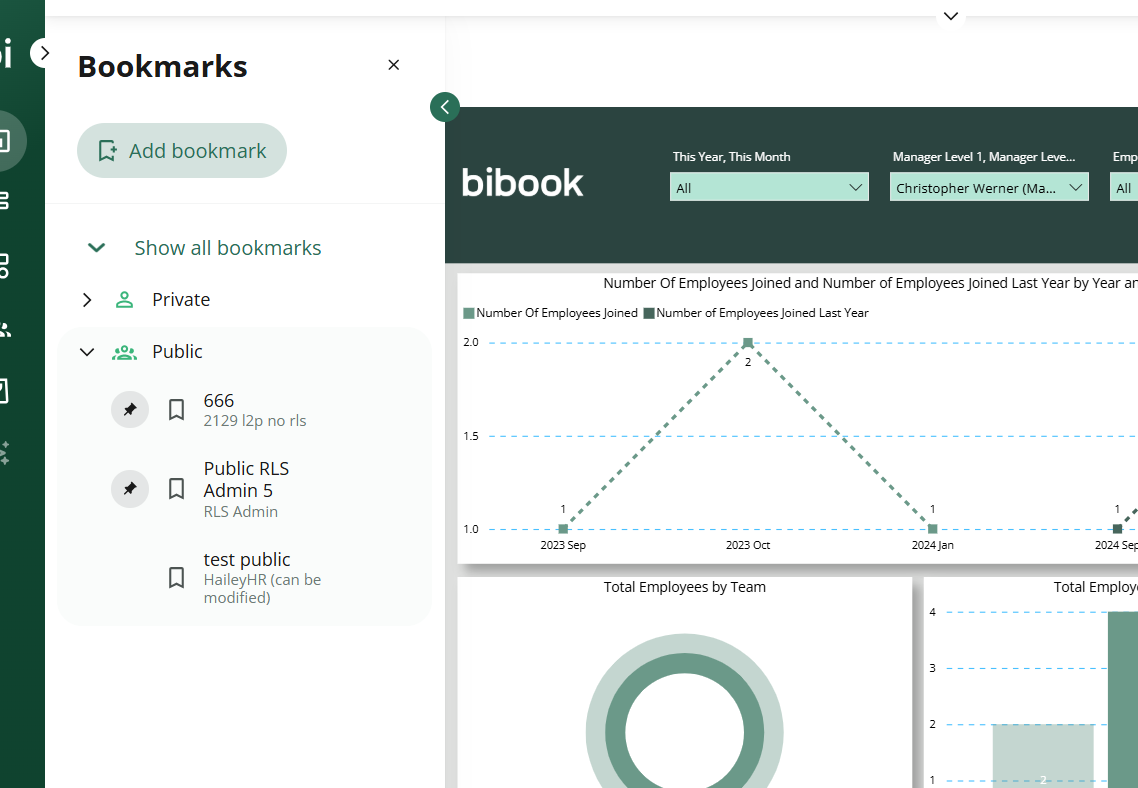
💡The Bookmarks pane opens on the left side of the screen. By default, it shows only the bookmarks belonging to the currently open report (if any), plus any pinned bookmarks from reports you have access to.
Expand Private or Public to see the available bookmarks.
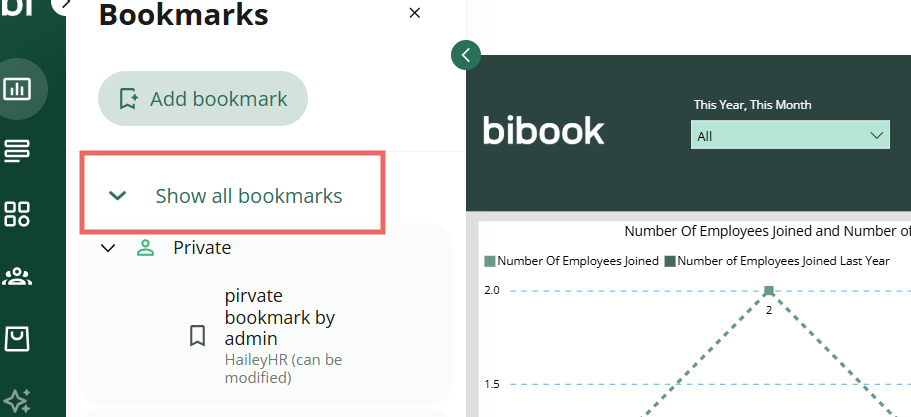
If you would like to see all bookmarks available to you across reports, click on “Show all bookmarks”
How to create a bookmark
Open the report you want to bookmark.
On the action panel, click the View icon.
Select Bookmarks:
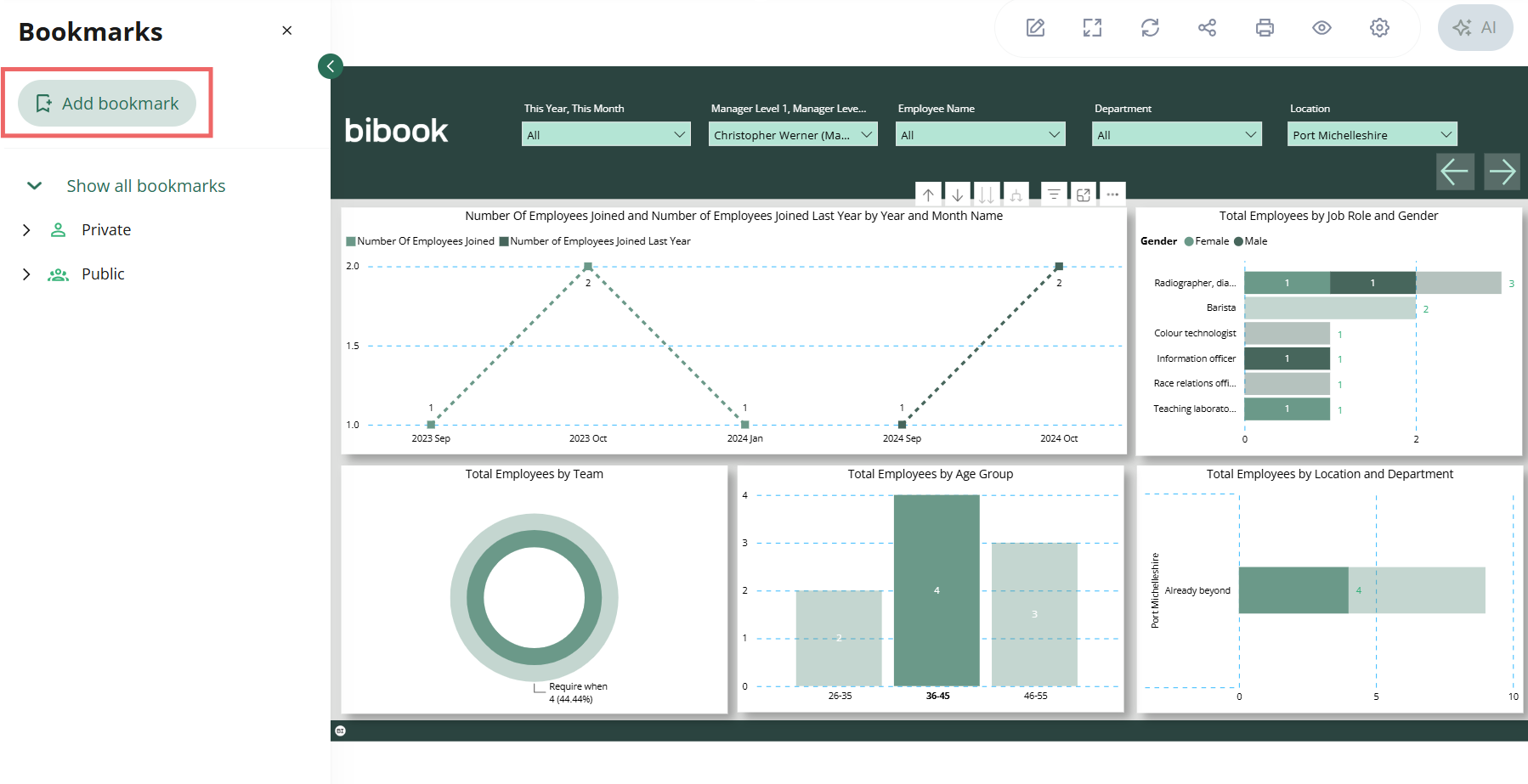
Set up the report view you want to save
Click Add Bookmark
Provide name for your bookmark
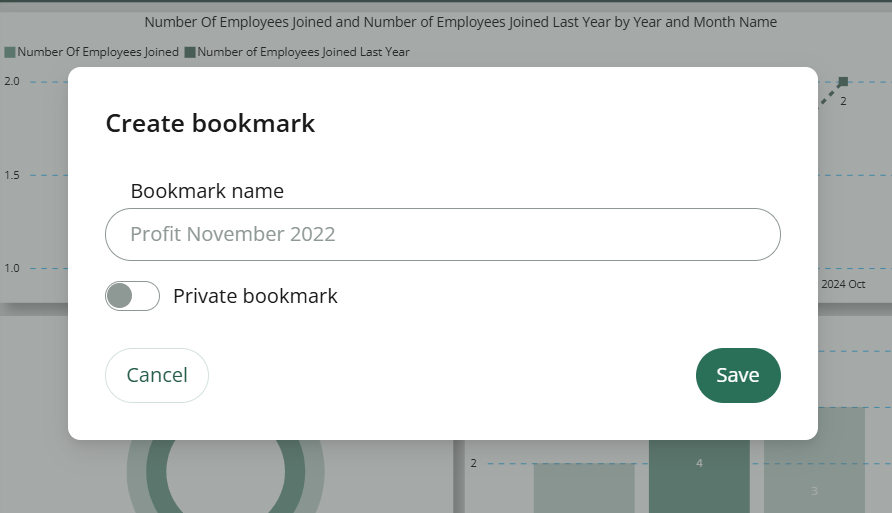
Choose the type of your bookmark by clicking on a toggle:
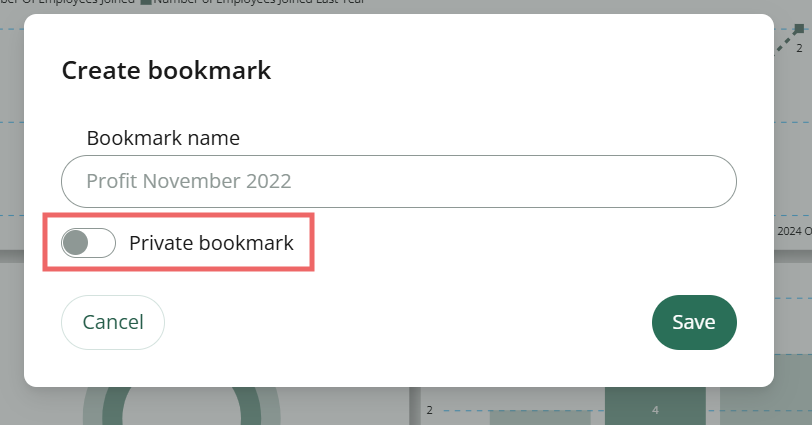
ℹ️ If you cannot change the state of the toggle, then you don’t have sufficient rights on this report to create a public bookmark.
⚠️Once the bookmark is created you cannot change its type.
click “Save”
How to pin a bookmark
☝️Pinned bookmarks are only pinned for you.
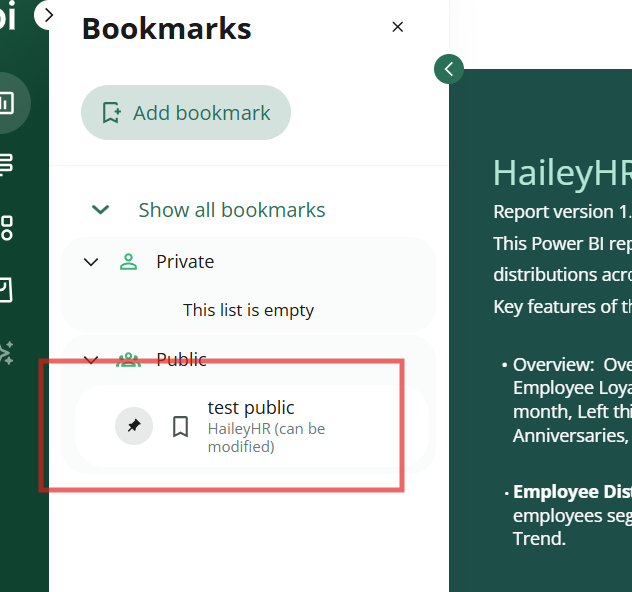
To pin a bookmark, hover over its name in the Bookmarks pane. A pin icon appears — click it.
How to update a bookmark
Open the bookmark you would like to update
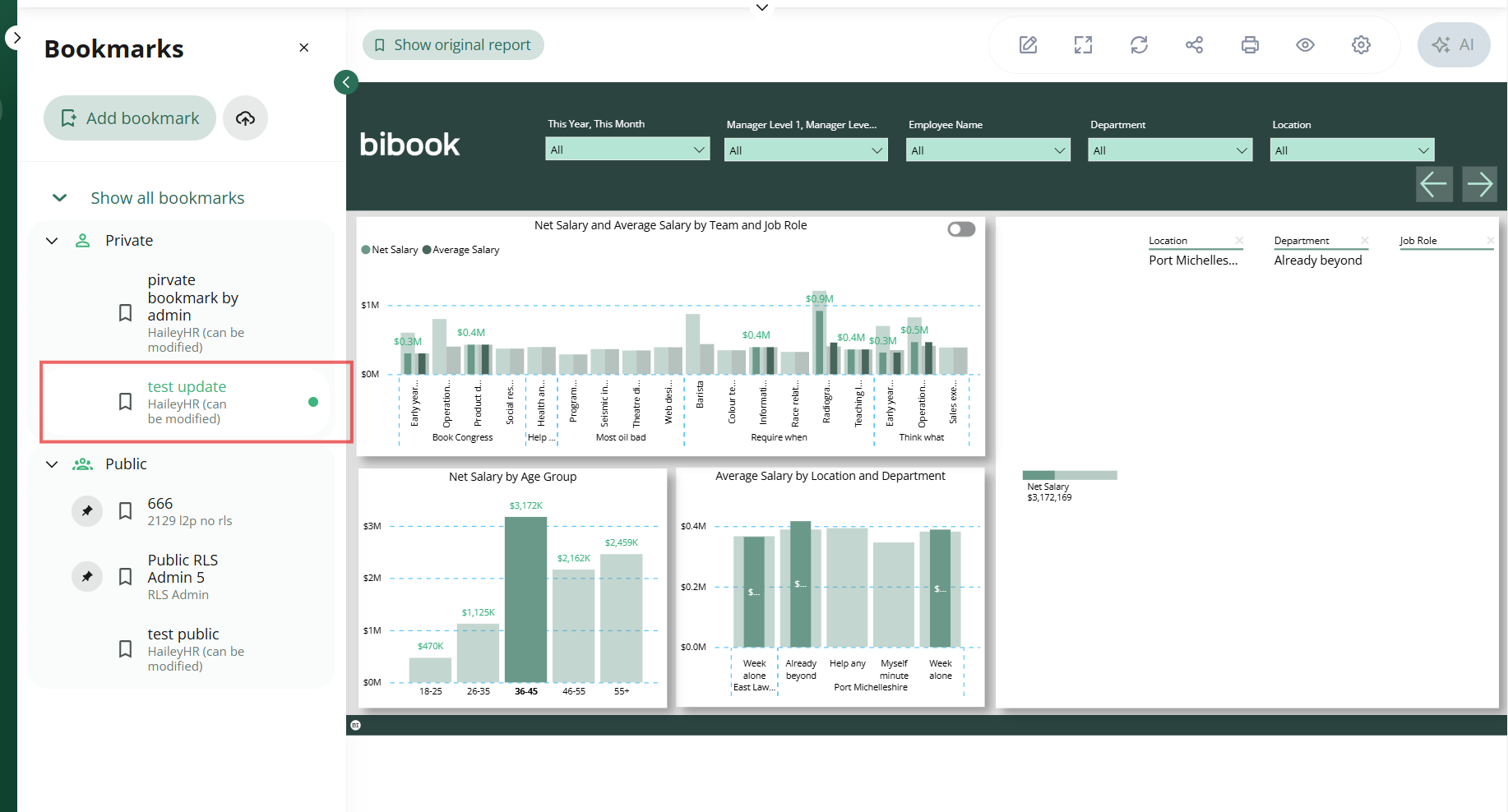
Adjust the slicer selections, or open edit mode (if you have sufficient permissions) to make the required changes, such as updating filters on the page or a visual.
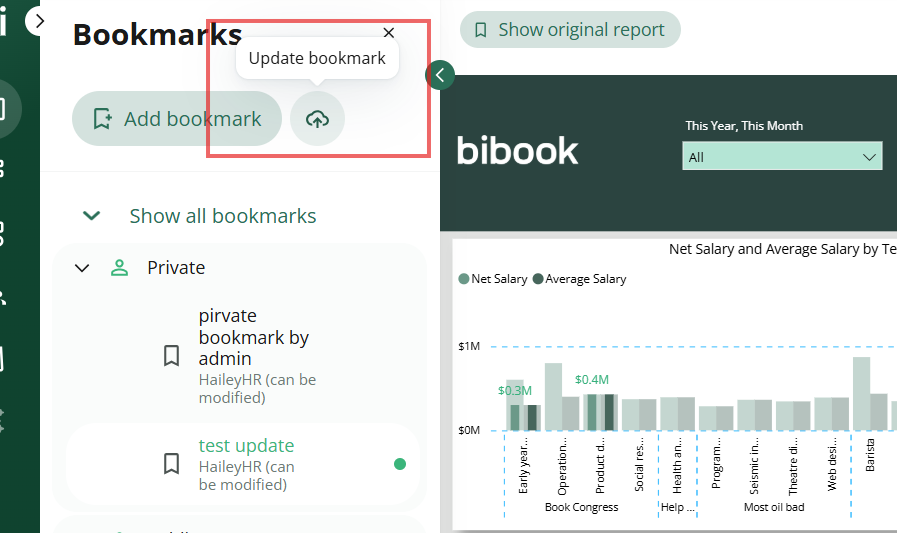
With the bookmark still selected in the Bookmarks pane, click the Update Bookmark icon and confirm the action.
How to delete a bookmark
To delete a bookmark, hover over its name in the Bookmarks pane. A delete icon appears; click it and confirm the action.
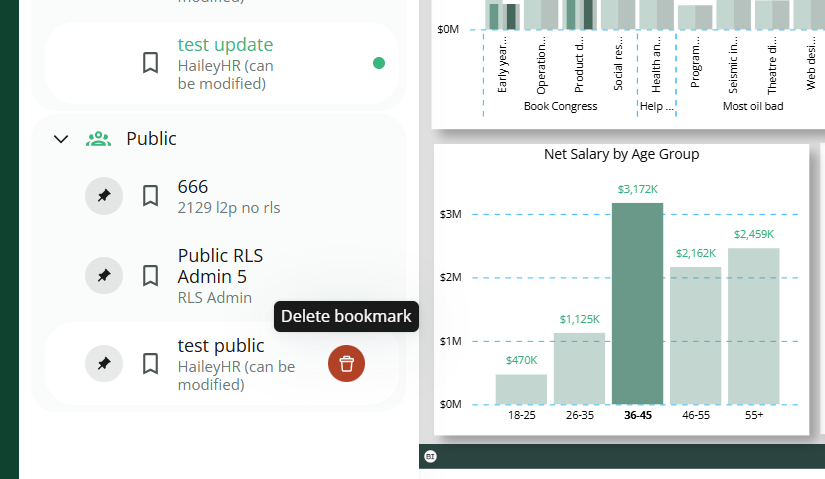
💡If you don't see the delete icon on a public bookmark, you don't have sufficient rights to delete it.
Was this helpful?
Still need help? Ask the team