Planning - Dynamic Column Headers from Measures
Last updated About 1 month ago
Starting from Planning v.1.0.1.3, you can use a measure to define column header titles instead of relying on static names. This allows dynamic, context-aware column headers that can change based on filters, scenarios, or other measure logic, providing greater flexibility and consistency in your planning reports.
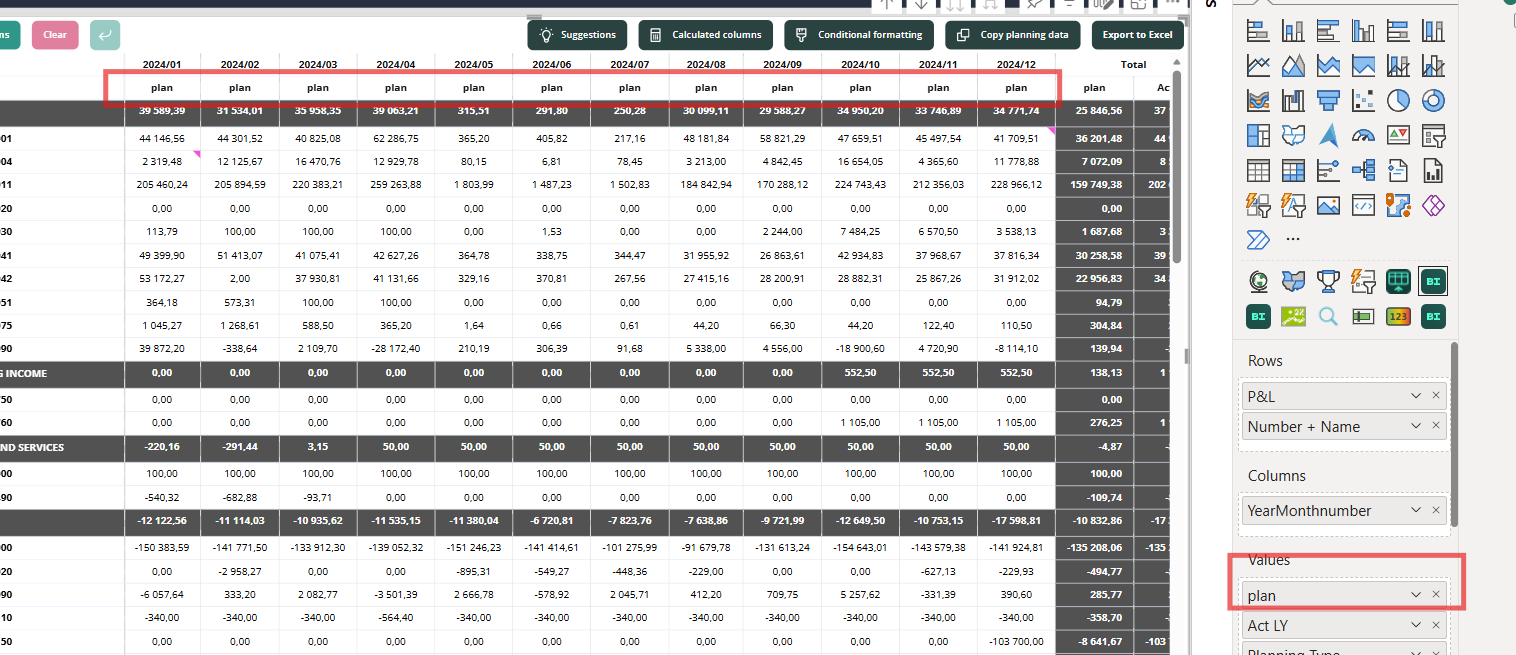
How to use
In Format your visual > Fields locate your planning measure:
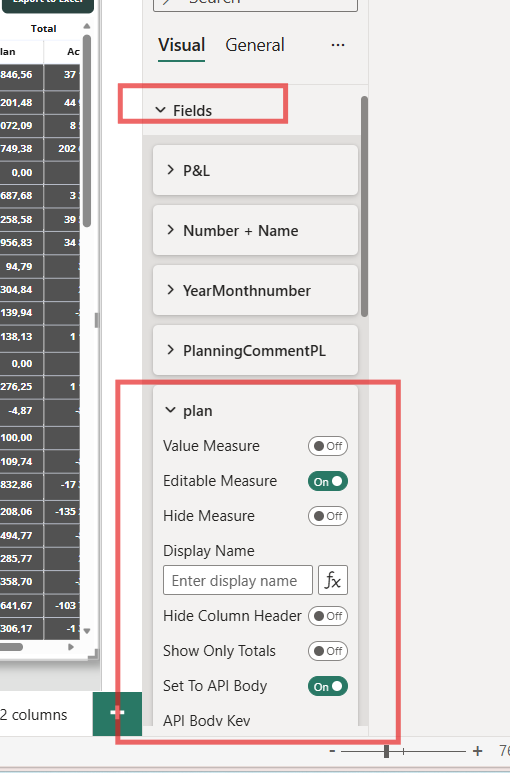
ℹ️ Any visible measure (i.e. the Hide measure toggle is off) can be renamed on the visual with the measure.
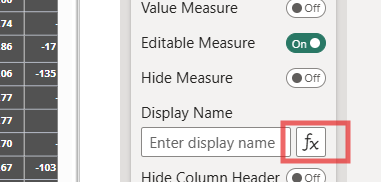
Click on “Conditional formatting” icon next to “Display name” setting:
In the pop up select the measure you’ve created for renaming column headers and press “Ok”:
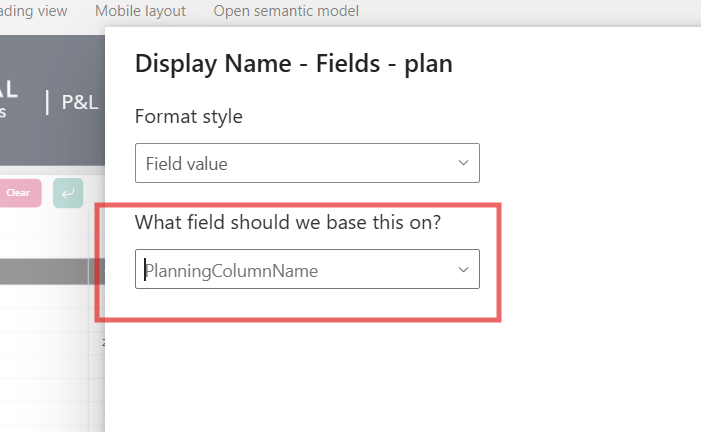
Measure example:
PlanningColumnName = If(MAX('Calendar General Ledger'[YearMonthnumber]) IN {"2024/03", "2024/01", "2024/02"}, "ACT", "EST")
As a result, all columns are renamed except for the subtotal columns (by design).

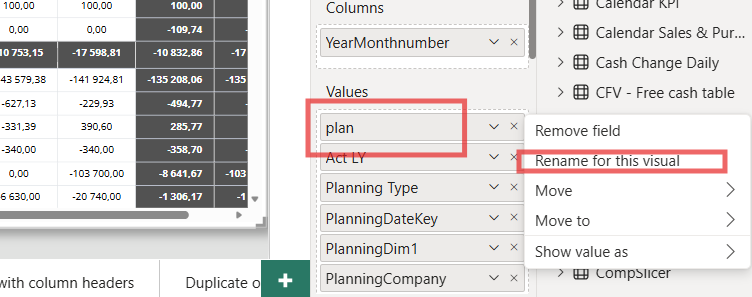
You can affect the subtotal column name, by renaming the planning measure (as before):
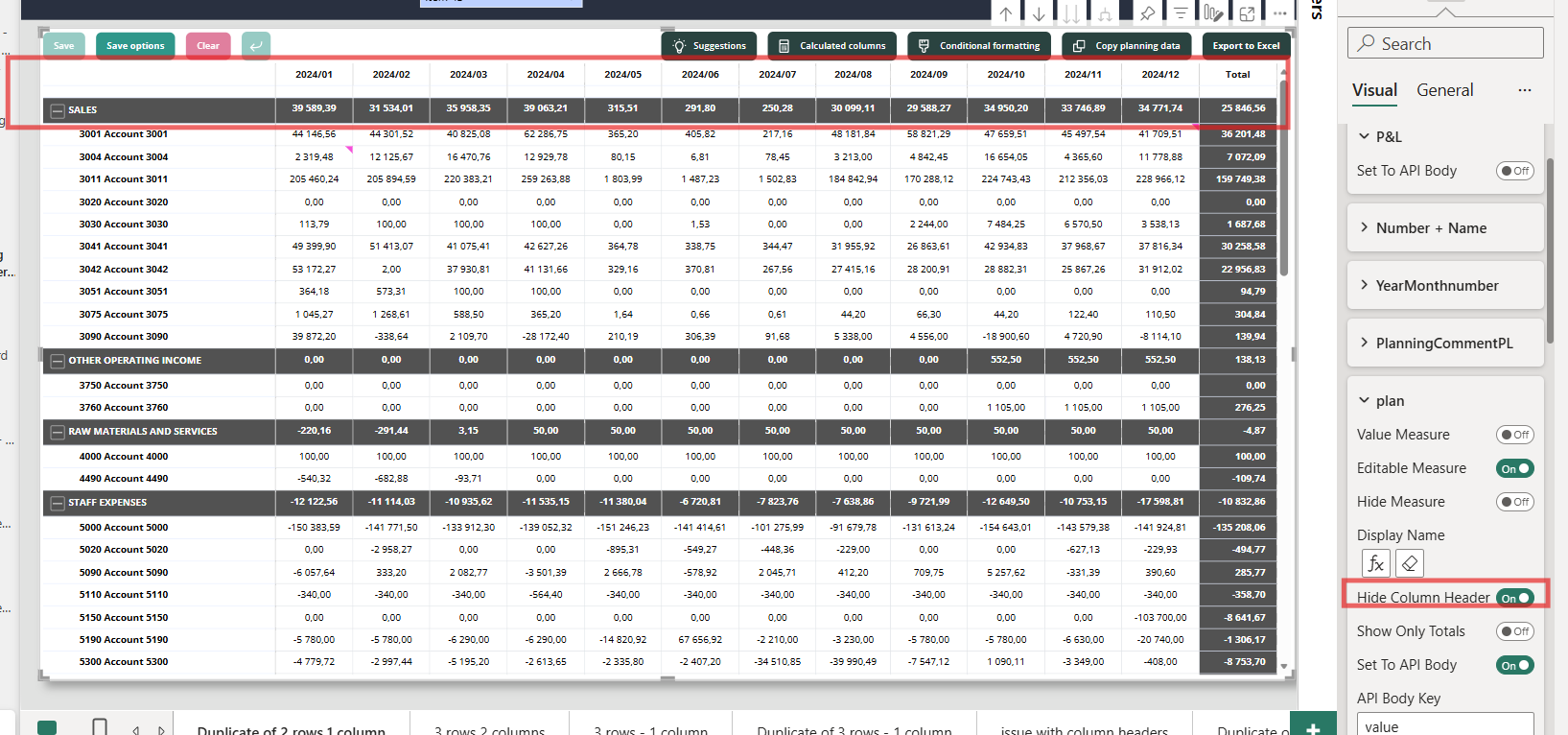
Alternatively you can hide column header completely:
Was this helpful?
Still need help? Ask the team