How to use copy planning data/scenario feature
Last updated 3 months ago
You can also copy entire estimates and budgeting scenarios in one go, instead of row by row. Just press the "Copy planning data" button.

💡If you can't see the button, ask your report developer to enable it in the visual settings.
Follow the instructions provided in the pop-up window:
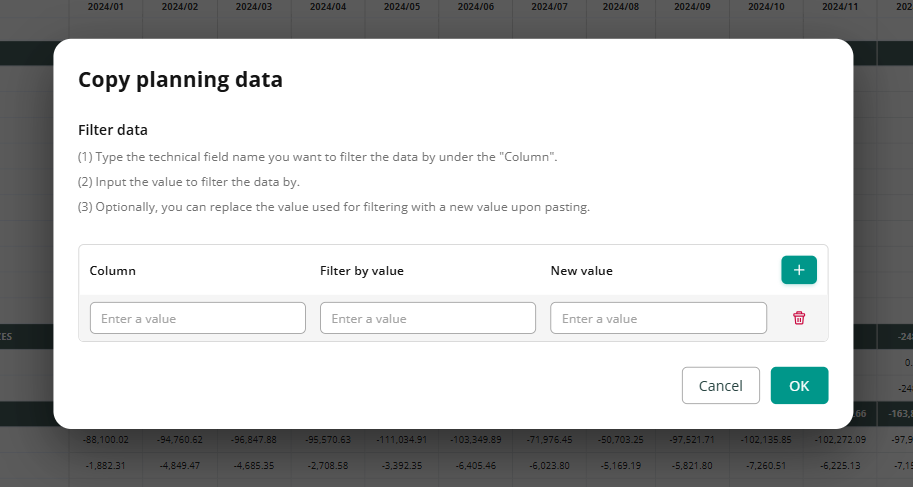
Under "Column," type the technical field name you want to filter the data by. For example, if you want to copy data from one scenario to another, you'll need the field name under which scenario versions are stored in the database.
You can find this technical field name in the visual settings: go to Format visual > Visual > Fields, collapse the field you need, and copy the value listed under API Body Key.
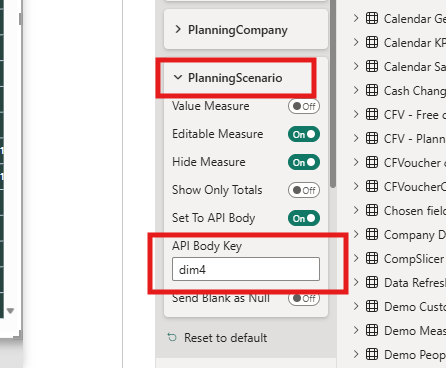
ℹ️ If you do not have access to report’s edit mode and cannot see your visual’s settings, please contact your analyst to provide you with the field-dimension mapping.
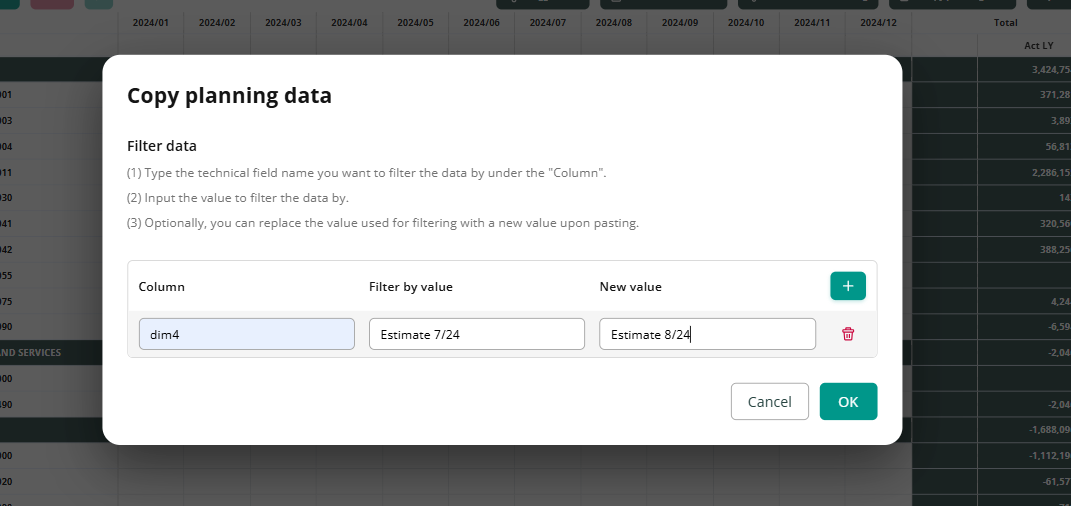
Under "Filter by value," enter the exact value you want to filter rows by. Spelling has to match precisely, or you'll get zero rows back. For example, if you're copying estimates from July and the scenario is called "Estimate 7/26," that's exactly what you need to enter.
Under "New value," you have two options. Specify a brand-new value, and it'll be added to the dimension you're filtering by (e.g., "dim4" from the example above). Or specify an existing value, and the values will be replaced instead.
For example, say you want to copy July's scenario values into August. If August is completely empty, just enter "Estimates 8/26" and you're set. But if "Estimates 8/26" already has values, this action will overwrite them completely with values for July.
Press “Ok”
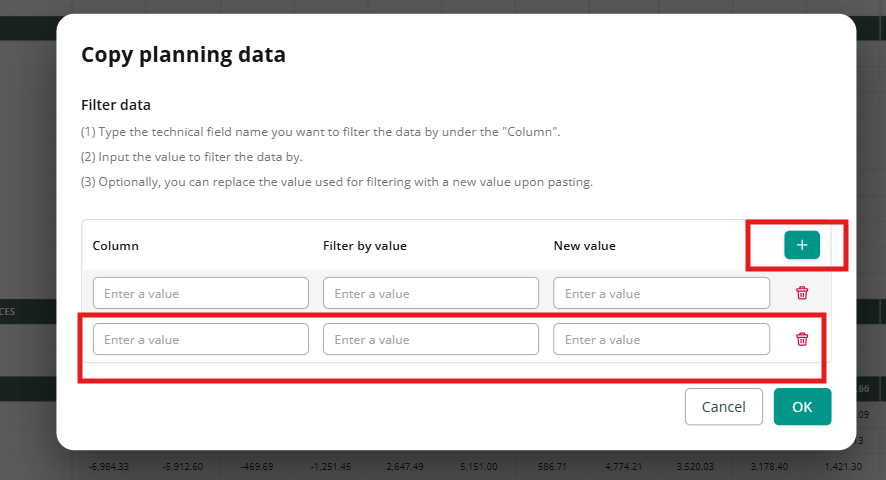
It is also possible to use more than one filter before copying, but you should have an understanding of how the data looks in database to make it work. To do it, press “+” in the “Copy planning data” modal to add another filter.
Was this helpful?
Still need help? Ask the team