Planning - Saving settings
This page explains the available options for saving planning cell data.
Last updated 5 months ago
From package version 1.0.1.1 onwards, BI Book Planning supports different “Save” modes for planning data.
The core value of Save Options is that they let you control which planning cells land in your database (planninglatest view) with each save action, so the data is immediately ready to query.
How to use
To configure the Save action, first enable the Save options button, which is disabled by default. Go to:
Format visual → Visual → Button formatting → Save options → Show (toggle On)
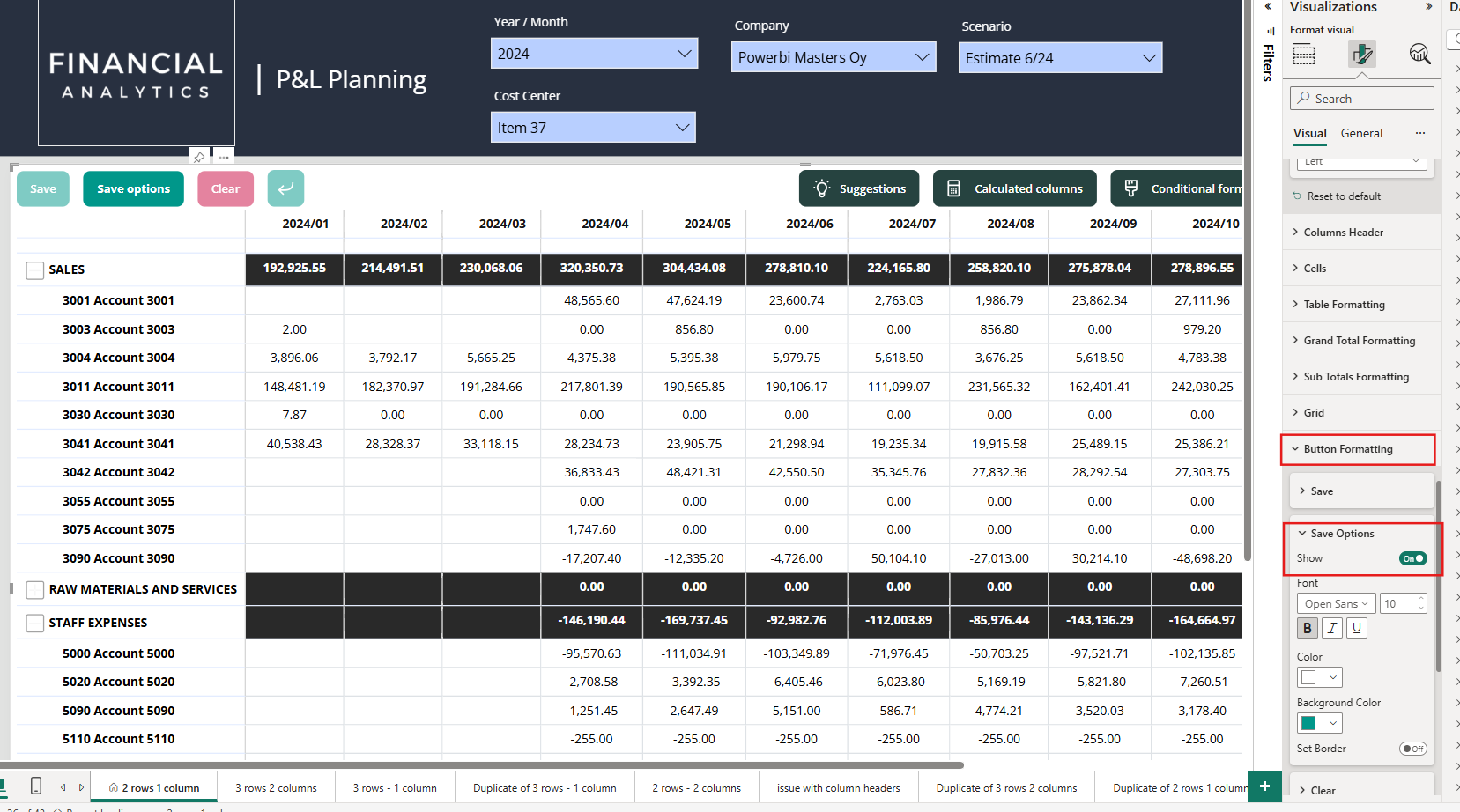
To modify the default Save behavior (saving only modified cells), click Save options:
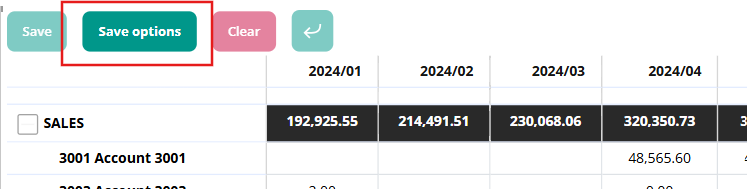
By default, only Standard save is selected. If you want the Save button to include additional cells together with the modified ones, select any of the following options:
Locked cells
Saves cells locked with a Locked cells visual setting.
Note: This does not affect cells locked using the Locked cells (backend) setting.Editable cells
Saves all editable cells, whether modified or not.
Note: Empty cells are not saved.Non-editable cells
Saves cells that cannot be edited but whose field(s) are included in the API body.Does not save empty cells.
Can be used when a planning value measure is configured as non-editable but you still want to save its values.

Use-case example
For example, suppose in Save options you have selected both Standard save and Locked cells.
In your planning scenario, some months are locked for editing, and you update the forecast for the upcoming quarter.
When you click Save:
All modified cells are saved
All locked cells are saved as well
Everything is stored in the database with the same timestamp
Benefit:
This ensures that both your updated forecast and the locked reference values are saved with the same timestamp, making it easier to filter the data for further reporting.
Was this helpful?
Still need help? Ask the team