Table Writeback - Calculated Columns
Last updated 2 months ago
Calculated columns allow you to add a new, custom data value to every single row in a table based on an expression or formula.
Note: Unlike in BI Book Planning, calculated columns can't yet be saved to the database for further data modeling. This is on our roadmap.
Adding a calculated column
Table Writeback supports two types of calculated columns:
Numeric — formula can only reference numeric fields
String — formula can reference any field
To add a calculated column, click + in the action panel, then select Manage Calculated Columns:
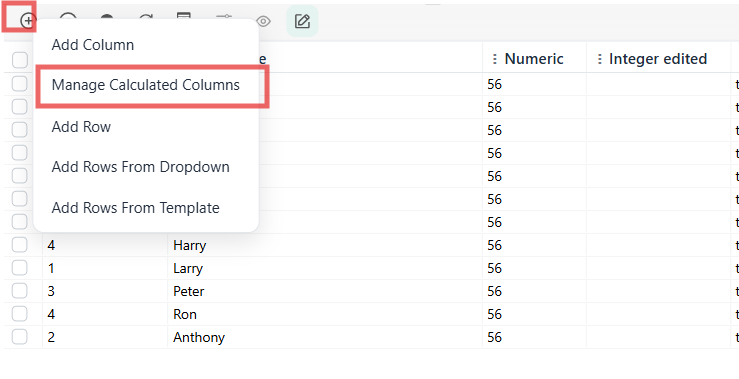
Click “Add”:
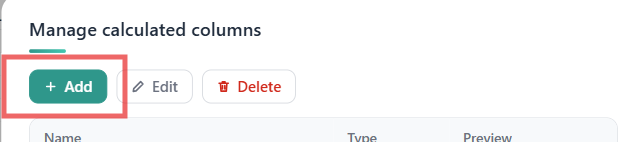
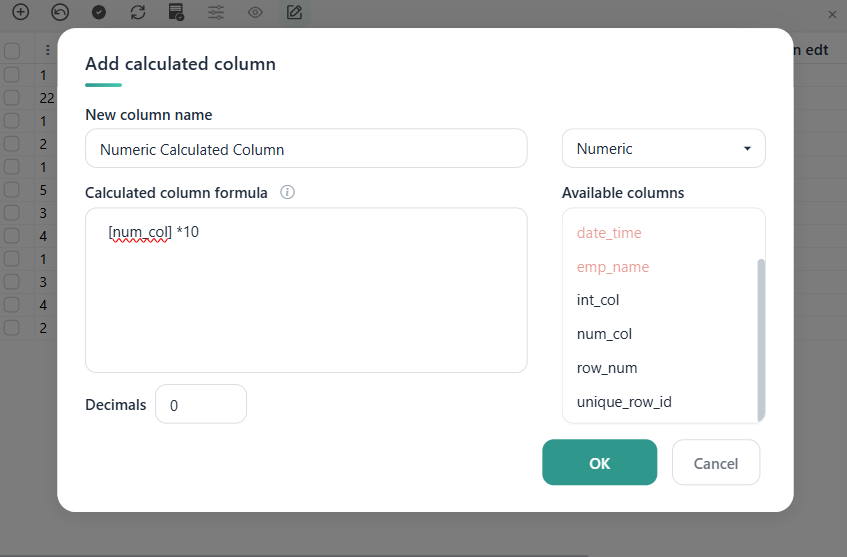
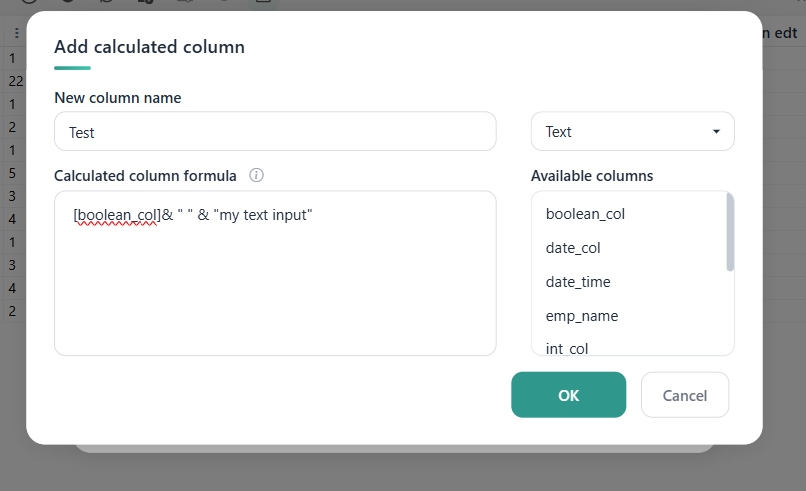
Specify:
calculated column name
column type (numeric/text)
calculated column formula
To select columns for your dropdown, double-click the column in the list on the right.
Formula syntax
Column references are written in square brackets: [ColumnName].
Numeric formulas support the operators +, -, *, / and parentheses ( ).
([Quantity] * [UnitPrice]) - [Discount]Empty or non-numeric source values are treated as 0. When the column type is Numeric, only numeric columns can be used; non-numeric columns appear in red in the Available columns list and cannot be inserted.
Text formulas join values with & and use quotes for literal text:
[FirstName] & " " & [LastName]
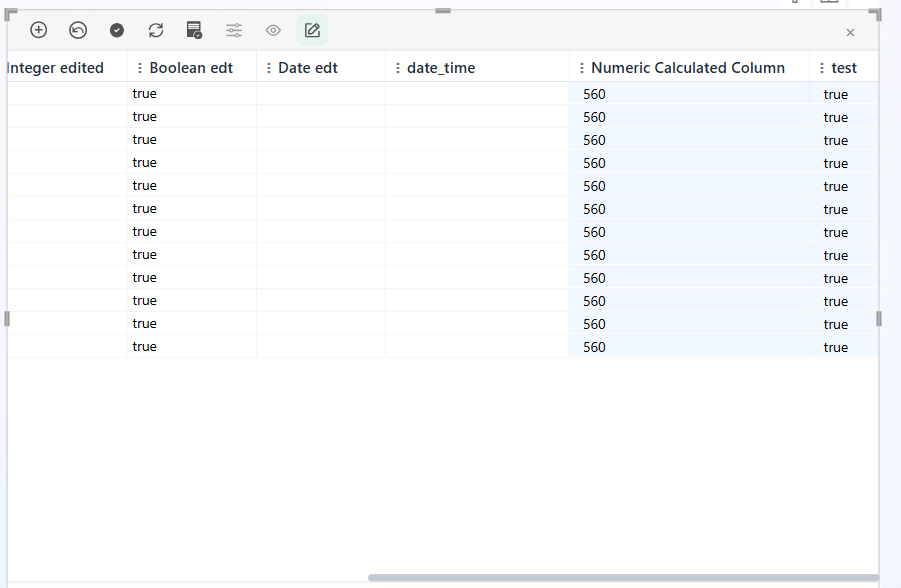
As a result calculated columns are added at the end of the table but you can change the column order if you would like to (manage table’s columns):
Editing or deleting a calculated column
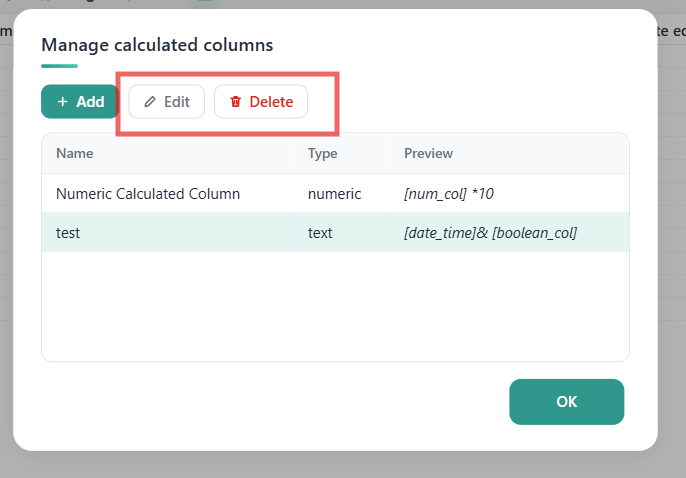
To edit or delete a calculated column, click + in the action panel, then select Manage Calculated Columns. Click a column to select it, it'll highlight to confirm.
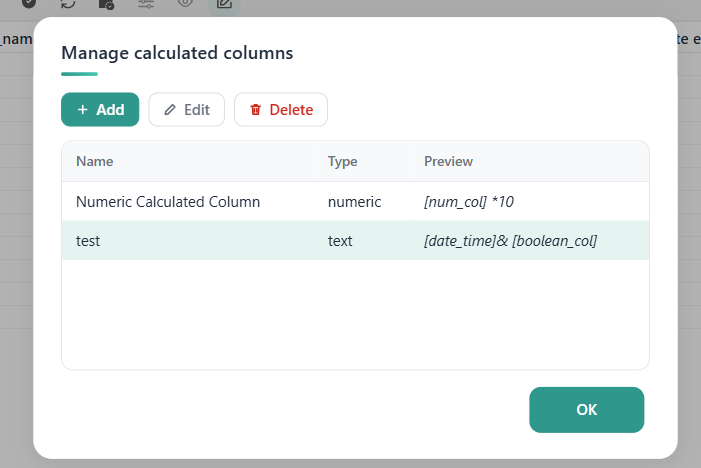
Press either “Edit” or “Delete” button respectively:
Was this helpful?
Still need help? Ask the team