Table Writeback: Lock for Editing
This article covers how to lock a column or lock a table for editing
Last updated 3 months ago
Locking a column
Lock specific columns to prevent other users from editing them.
Click the "…" menu in the column header and select Edit.
In the “Edit Column” window set “Is locked” toggle to ON:
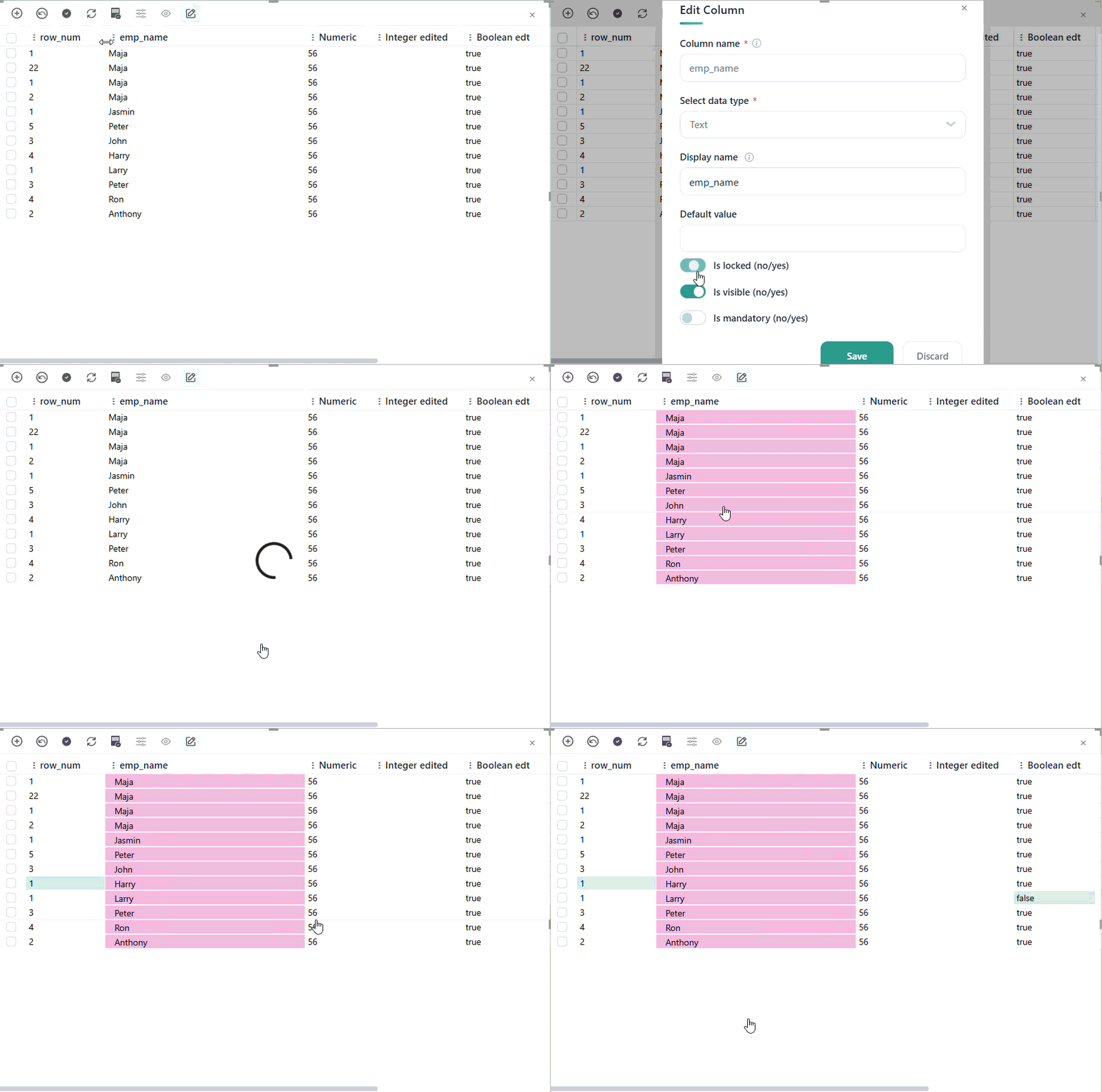
If you have edit access to the report, you can adjust the background color of the locked cells in Visual → Cell Setting → Style → Locked Cells Background (default is light grey).
Locking a table
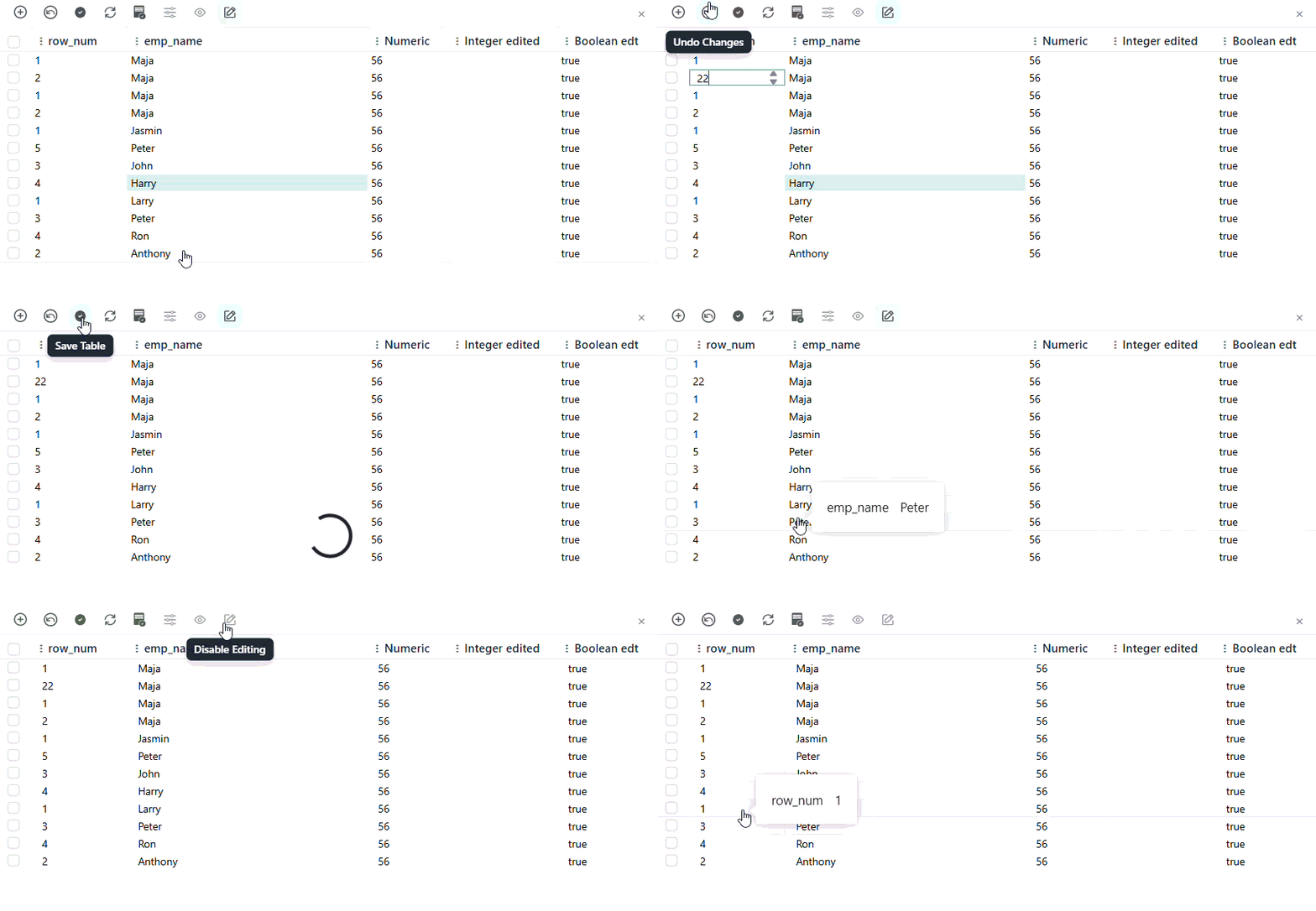
Done editing? Lock the table so other report readers can't make accidental changes.
Click the lock icon on the action panel:
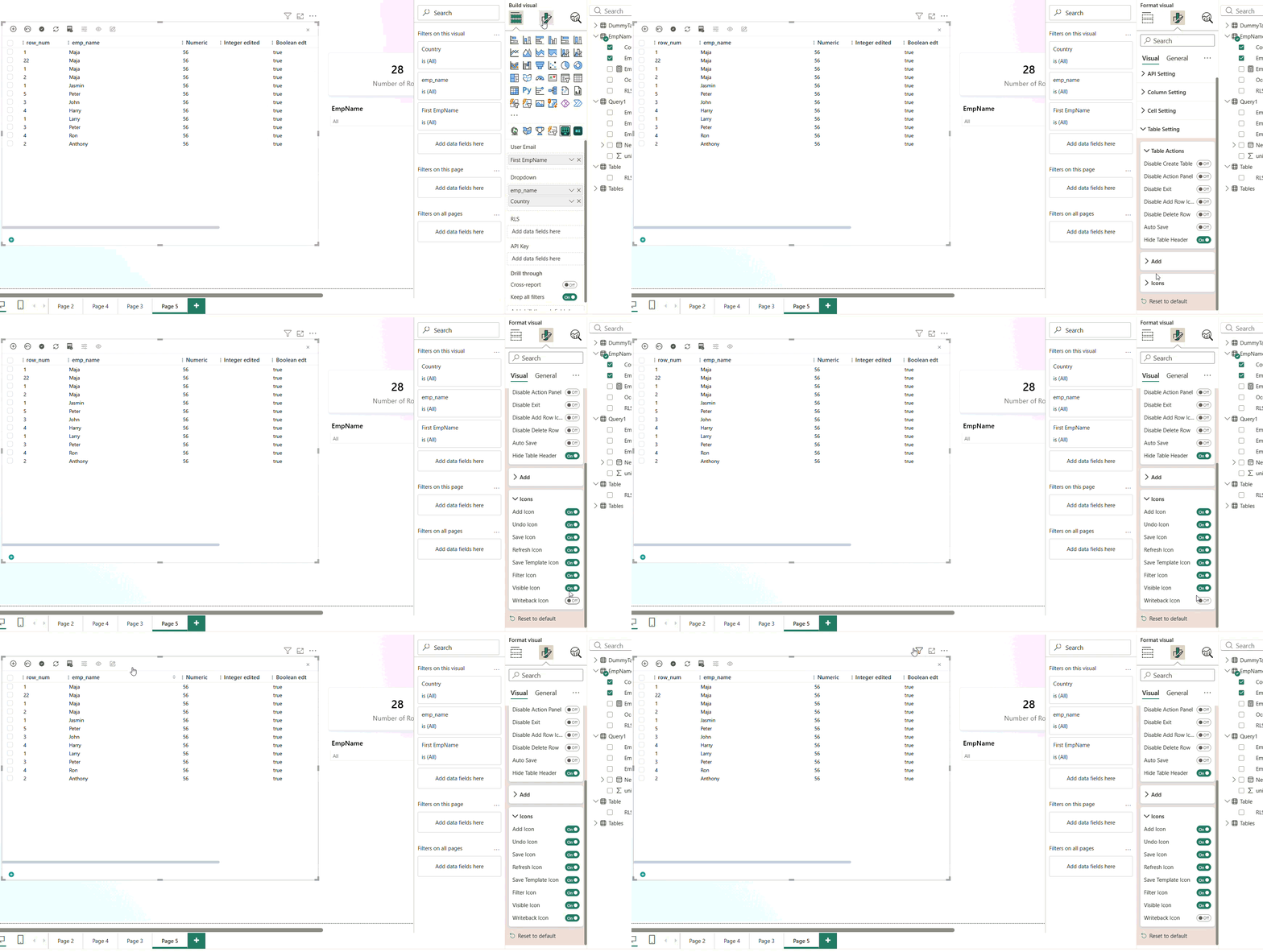
If you have edit access to the report, you can hide the Enable Editing icon from the action panel so other users can't edit the table:
Visual → Table Setting → Icons → Writeback icon
Was this helpful?
Still need help? Ask the team