How to activate Netvisor Planning integration
Last updated 7 months ago
Activation flow
The activation process starts from the Netvisor Store.
*NOTICE The BI Book Planning tool requires the BI Book financial model to be activated for the company. If the activation cannot be completed via the Netvisor Store, it means that the BI Book financial model is not currently active for the company.
/
Log in to Netvisor with a user with rights to use the Netvisor store. Usually, only your account Admins can do this.
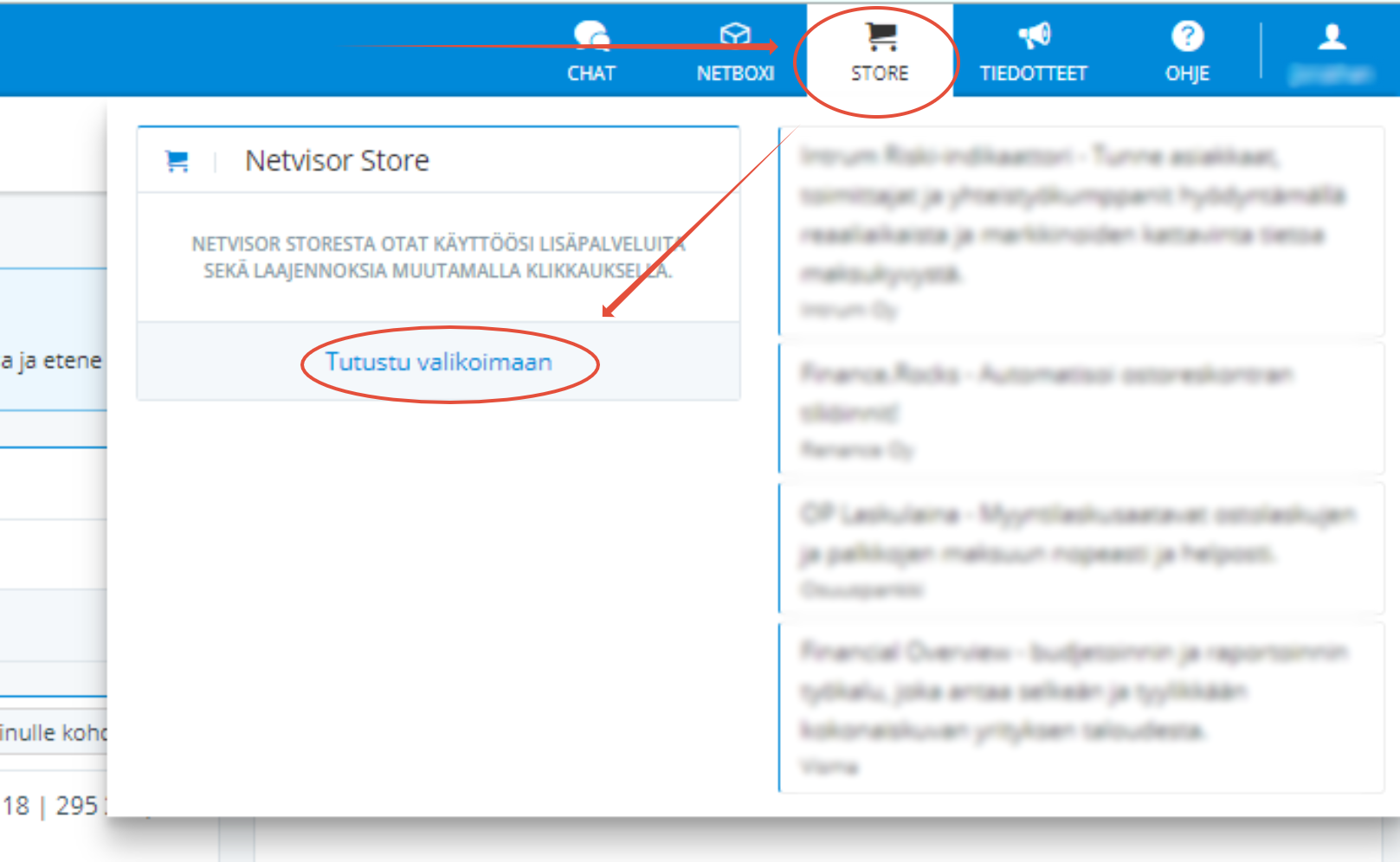
Go to the Netvisor Store either by clicking this link or following steps 3-4: https://suomi.netvisor.fi/evo/admin/integrationmanagement/netvisorstore.aspx?
(If step 2 skipped) In your upper right corner, choose "Store" and "Browse the Selection."
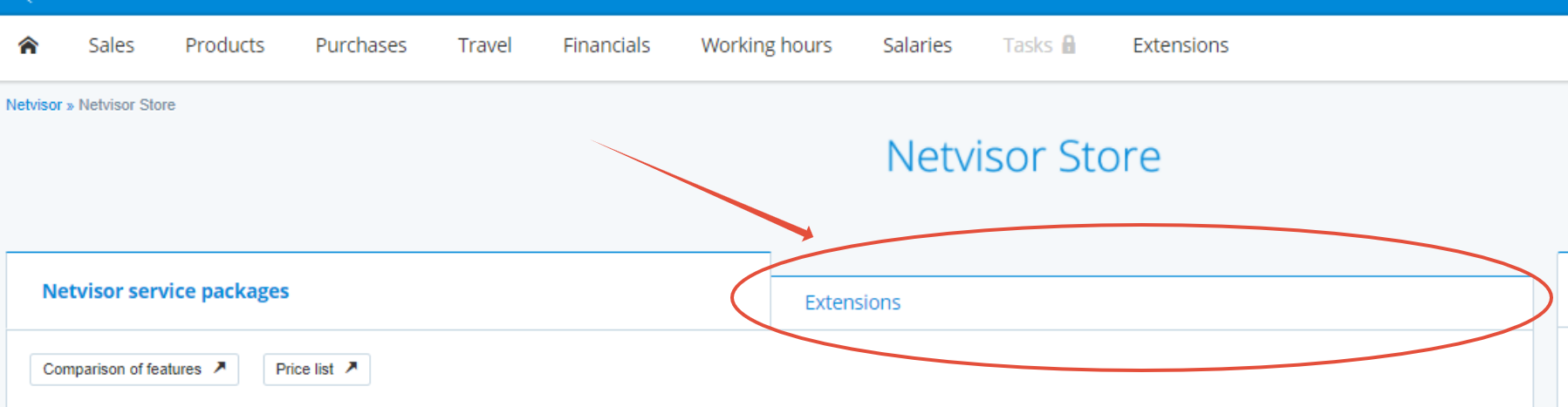
(If step 2 skipped) Choose "Extensions" (in finish "Laajennokset")
Scroll down to find BI Book Planning and click “Activate/Aloita käyttöönotto”

Press "Go to BI Book activation / Siirry BI Book Planning -käyttöönottoon"
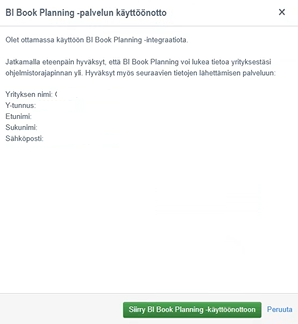
You will be redirected to https://bibook.com/no_have_company
After the redirect, the browser will ask you to login and authenticate the integration process. Log in according to the email service provider used by your company (Google or Microsoft authentication).
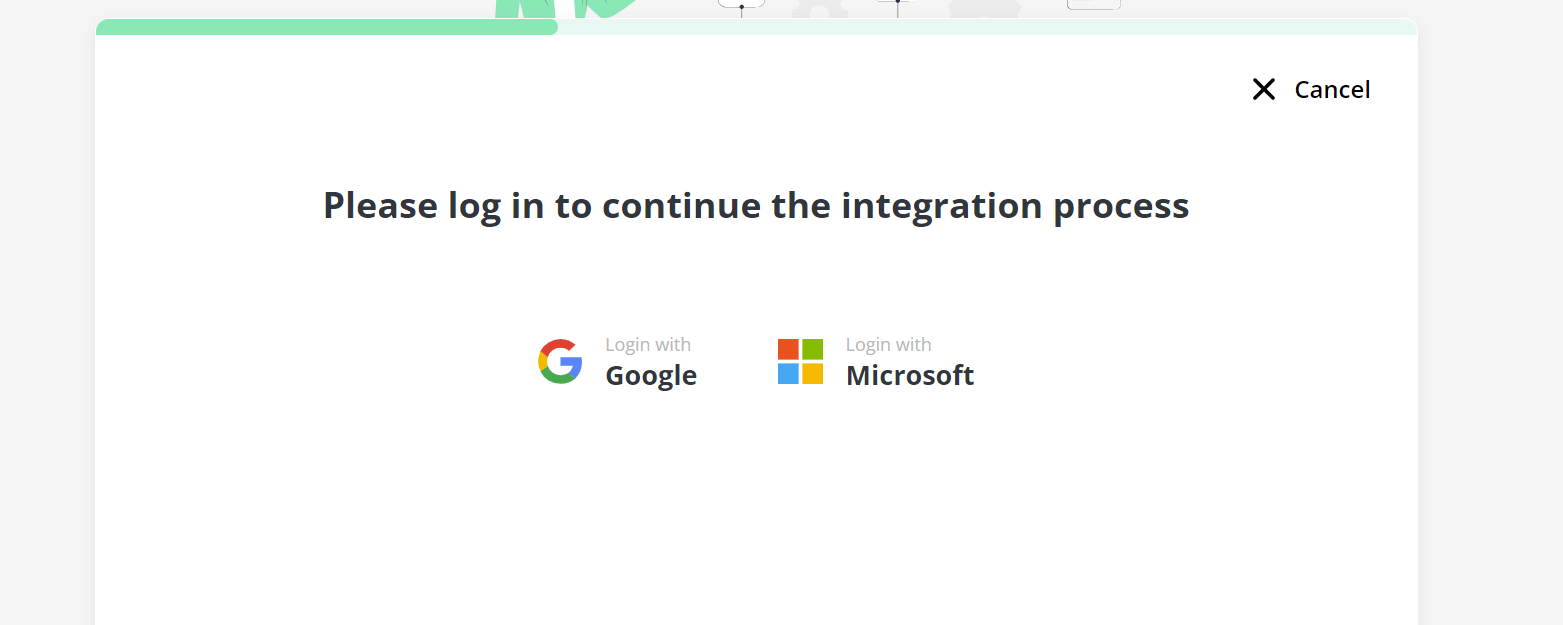
IMPORTANT! You must log in to activate the service. If you do not log in, the service will not be activated and you will need to restart the process.
IMPORTANT! You must log in to activate the service. If you do not log in, the service will not be activated and you will need to restart the process.
After logging in, if your email is linked to an existing BI Book environment that matches the company Business ID in Netvisor from which you started the activation, select that environment.
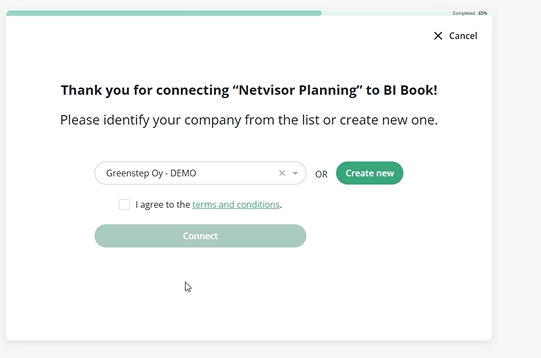
Read and accept the terms and conditions, then click Connect. The service may ask you to authenticate again.
After this, a new pop-up will confirm that the integration has been successfully connected.
Please wait a 5-10 seconds, after which you will be redirected to your BI Book environment.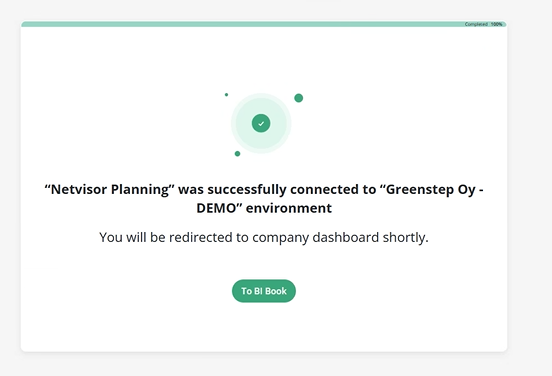
Was this helpful?
Still need help? Ask the team