BI Book Reports Embedding
Put your BI Book reports where people already spend their day. With report embedding, you create a shareable link that drops a live report into other tools, intranets, or screens. Your data reaches more people, and decisions happen faster.
Last updated 5 days ago
Before you start
Admins only. Only BI Book Admins can create report embed links.
Private mode is ready to go. Public mode is switched off by default to protect your data. Need it? Contact the BI Book Support Team (support@bibook.com) and we’ll help you enable it.
Choose your access mode
Private
Viewers sign in with one of your available authentication methods before they see the report. This is the right choice for most internal use.
💡 Tip: For the smoothest experience with private links, we recommend setting up SSO authentication in your BI Book environment. Your users sign in once and get straight to their data.
Private embedding doesn’t change who can see the report. Only users it’s shared with in BI Book can view its content.
Public
Anyone with the link can view the report without signing in. This works well for shared displays, such as TV monitors in the office.
Good to know: If row level security is enabled on the report, a public link shows data based on the role of the person who created the link. Everyone viewing it sees exactly what that user can see, so check the creator’s access before you share.
Supported methods of embedding
BI Book gives you three ways to embed a report. Each one starts the same way: copy the link or code, then paste it where you need it.
Direct link
The quickest option. Copy the link and share it with anyone who needs the report, by email, in chat, or on your intranet.JavaScript (recommended)
Embed the report straight into a website, CRM, or other web-based tool by copying the code into it. It gives the smoothest experience, because the report blends into the page and users don’t have to deal with browser pop-ups or extra permission prompts.iFrame
Also embeds the report into a website, CRM, or other tool by copying the code. It works, but some browsers may ask users to allow pop-ups or content from BI Book before the report loads. Use it when your platform doesn’t support JavaScript embedding.
Which one should I use?
How to create BI Book report embed link
You can open the embed link view in two ways. Pick whichever fits where you are.
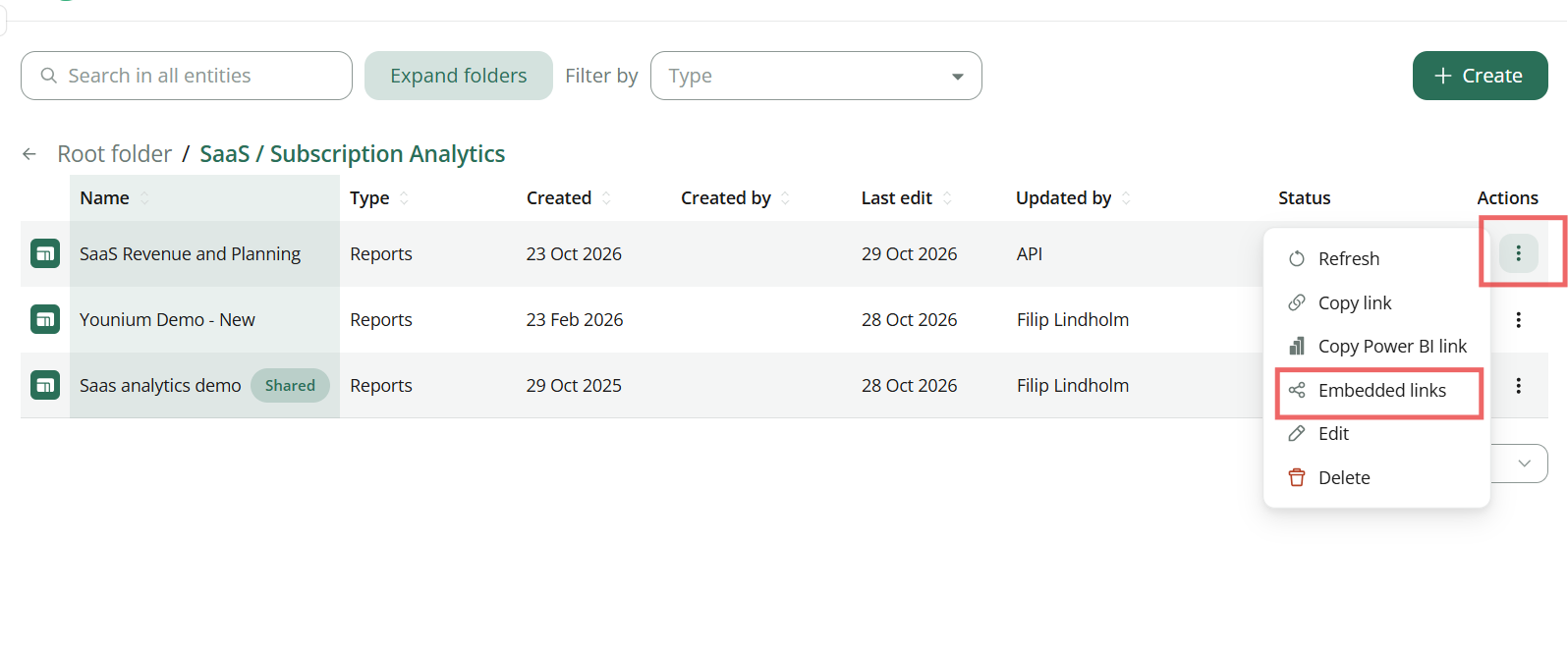
✅From the content page
Go to the Content page.
Find the report you want to embed and open its action menu (the three vertical dots).
Select Embedded links.
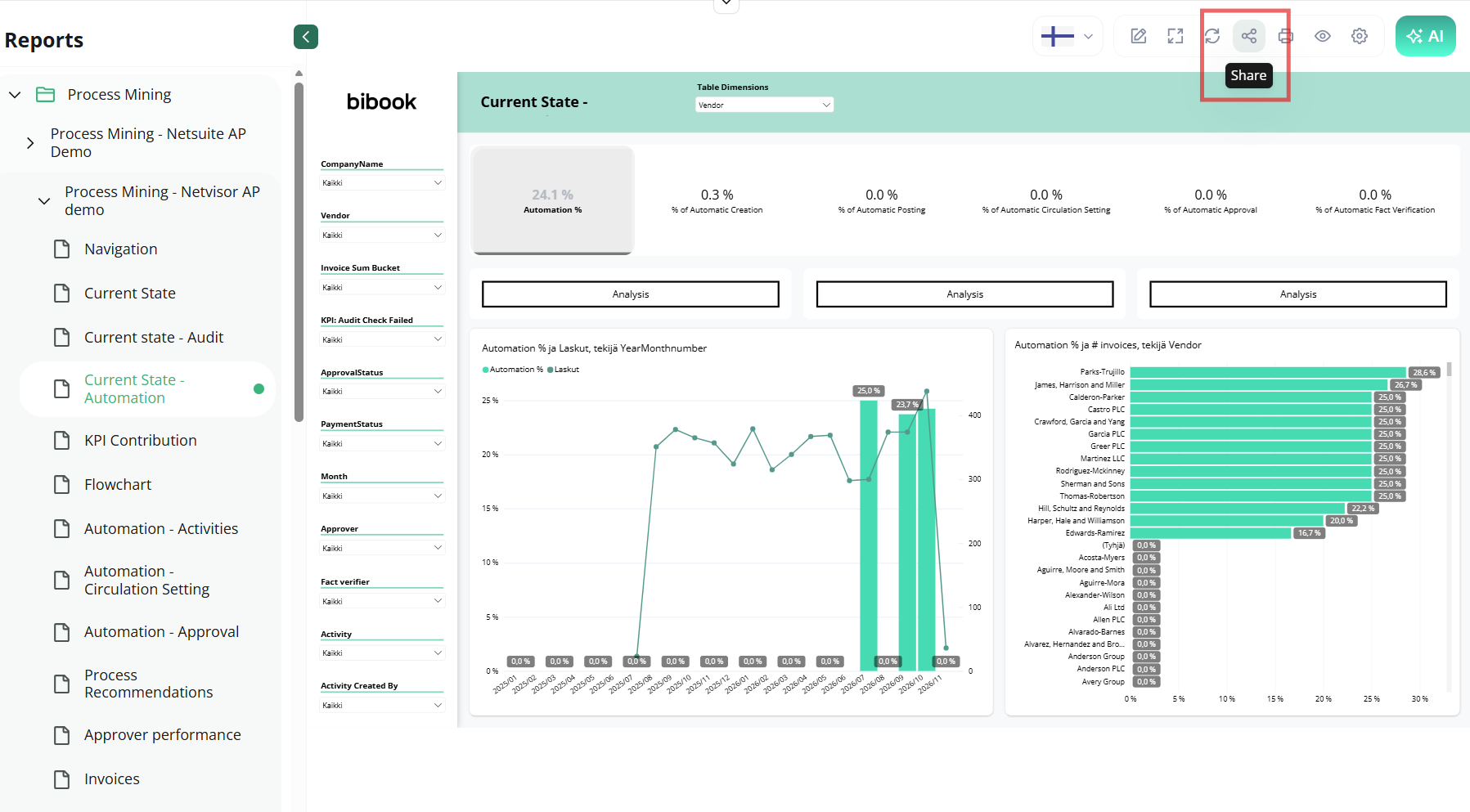
✅From inside the report
Open the report you want to embed.
In the action panel, select the Share icon.
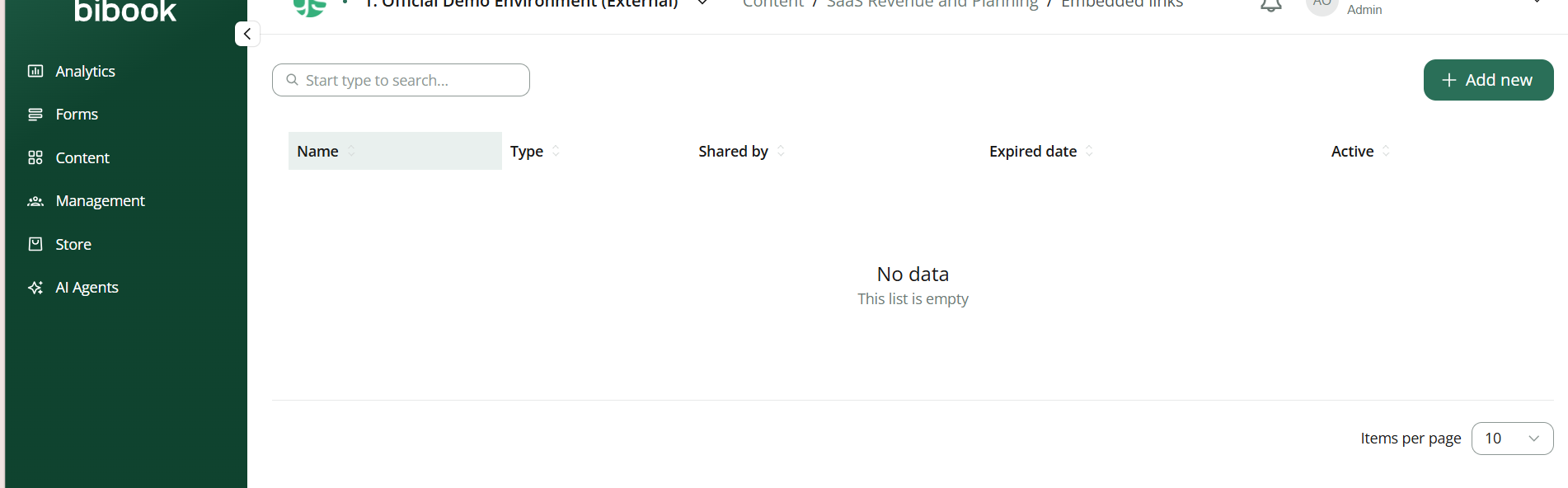
Both routes take you to the same place, where you can create and manage the report’s embed link.
In this view you can see and manage all embedded links for the selected report:
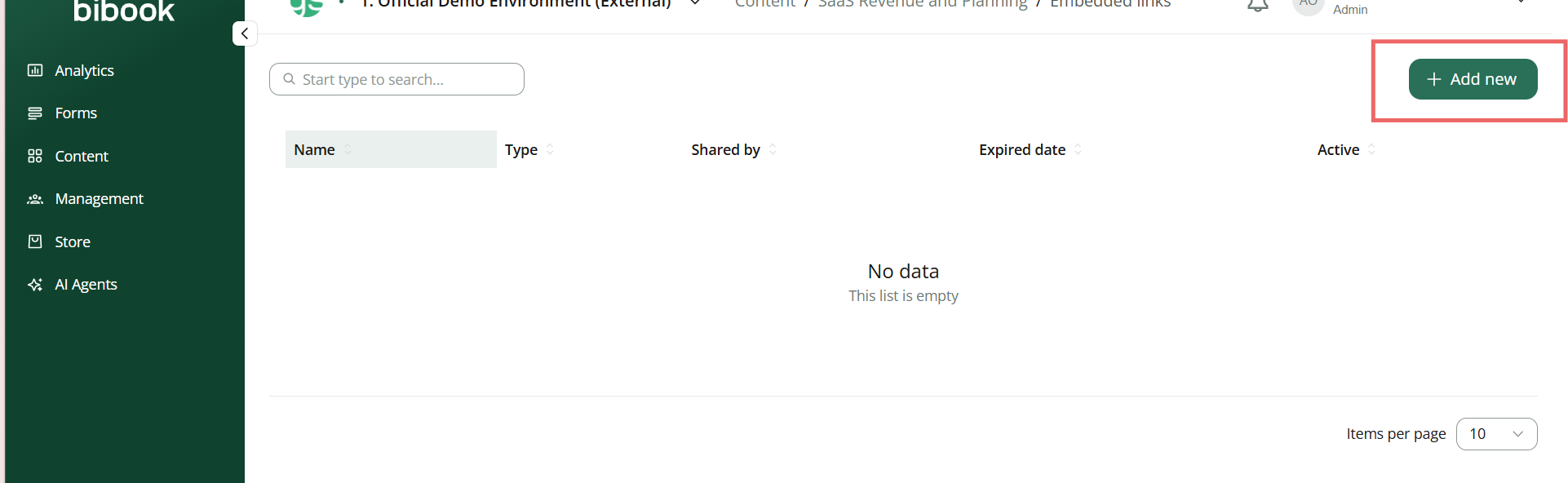
Click “Add new” button to create a new embed link:
You can only set these options once. After the link is created, only the name, expiration date and link type stay visible, and everything else is hidden.
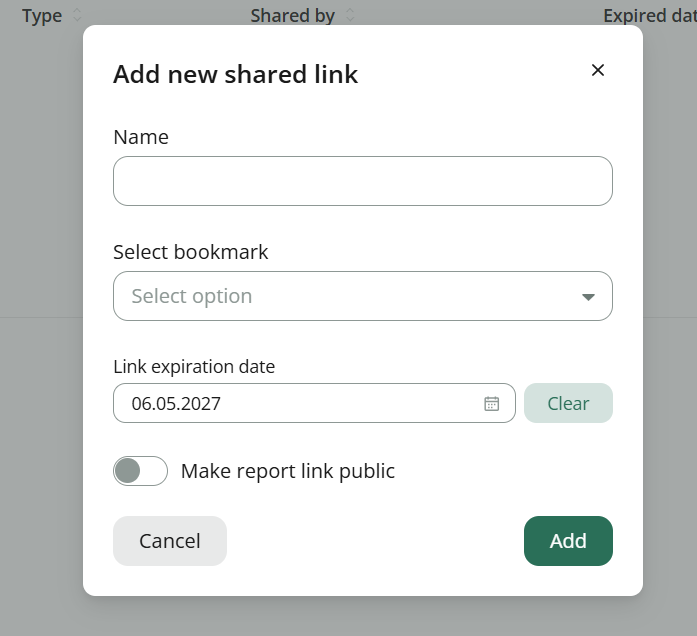
Name: Give the link a clear, descriptive name so other admins can see its purpose at a glance.
Bookmark: Want to embed a specific view? Choose a saved bookmark from the dropdown. Only bookmarks created for this report are available.
Expiration date: Choose when the link stops working. Select Unlimited period if it should never expire.
Make report link public (if available): Turn this on to make the link accessible without signing in.
Allowed IP addresses: For public links, limit access to specific IP addresses.
Important: A public link can bypass row-level security (RLS), which means anyone with the link may see all data in the report. Before sharing a public link outside your organisation, check that the report contains only data meant for that audience, and restrict access with allowed IP addresses wherever possible.
Once the link is created, select Get link and choose the format you need:
Link: a direct URL to the report.
JavaScript code: for embedding the report in a web app.
iframe code: for embedding the report in a web page or portal.
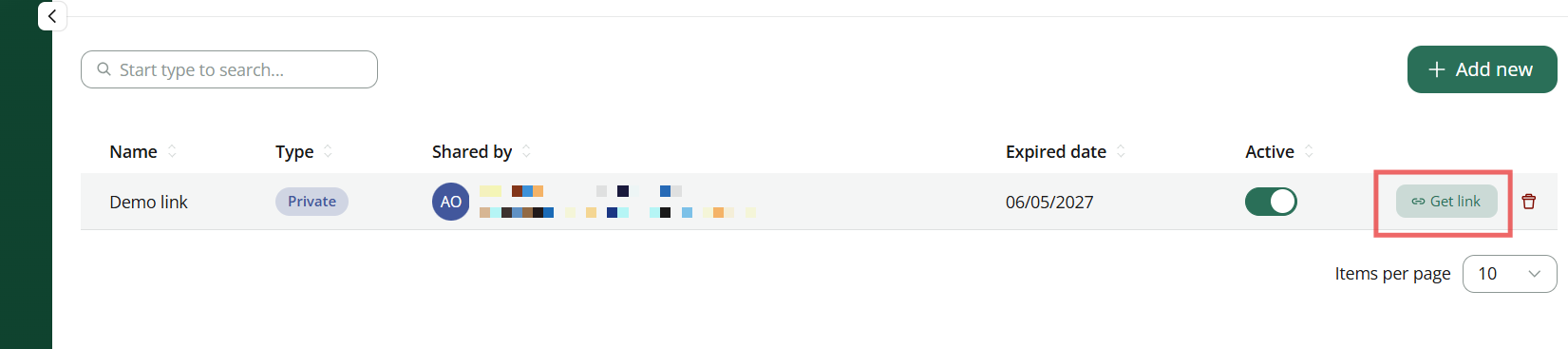
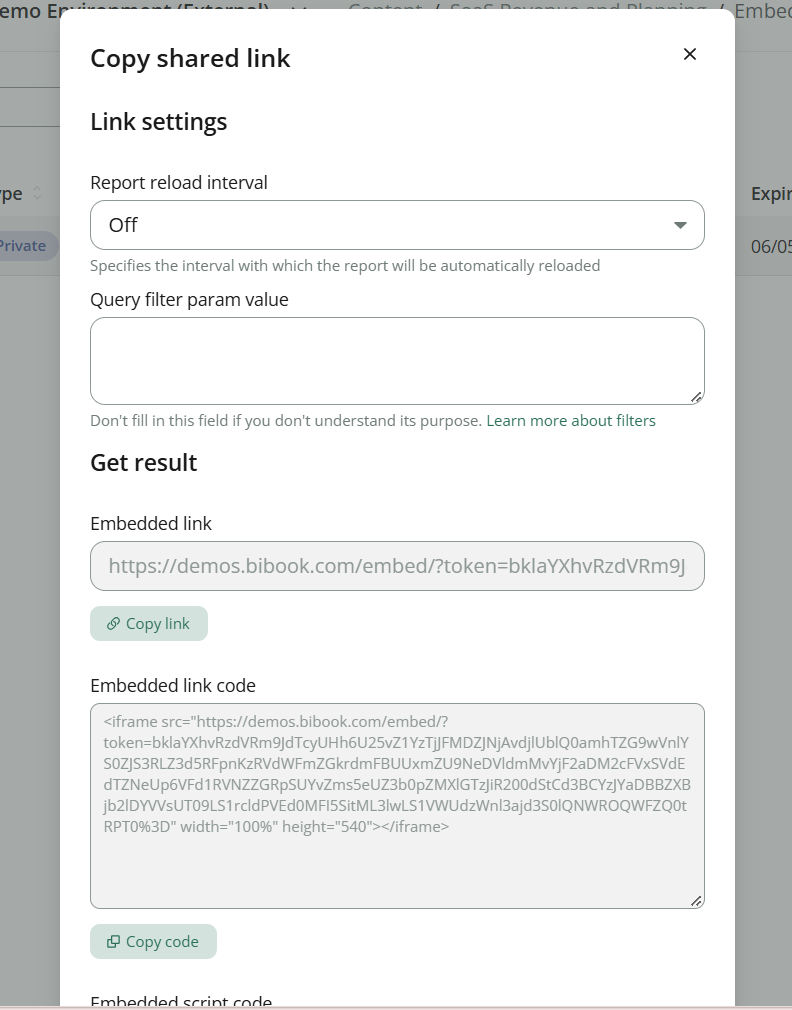
Reload interval: Keep the embedded report up to date by choosing how often it refreshes automatically.
Query filter parameter (advanced): Show a pre-filtered view of the report by adding a filter to the link. See Microsoft’s guide: Filter a report using query string parameters in the URL.
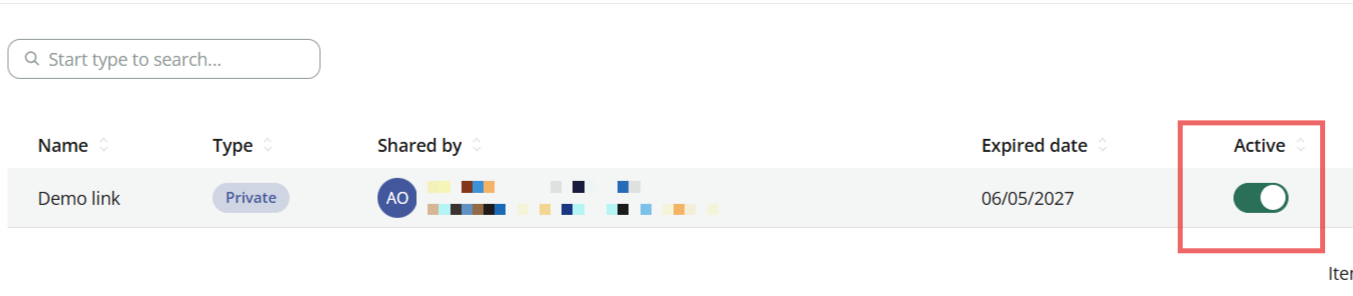
💡You can switch off an embed link at any time by turning off its Active toggle. The report stops loading for anyone using the link straight away, even if the expiration date hasn’t passed.
All report that are shared via embed links are marked as “Shared” on the Content page:

Was this helpful?
Still need help? Ask the team